Tagged: Personalization

Optimizely : Show Personalized Content Blocks

I have been exploring Personalization on Optimizely CMS 12 – Simple to set up, and can be utilized throughout the website.

I came across this use case where we want to show the Priority Call button on a page only during business hours.

The page currently has no call-to-action button.
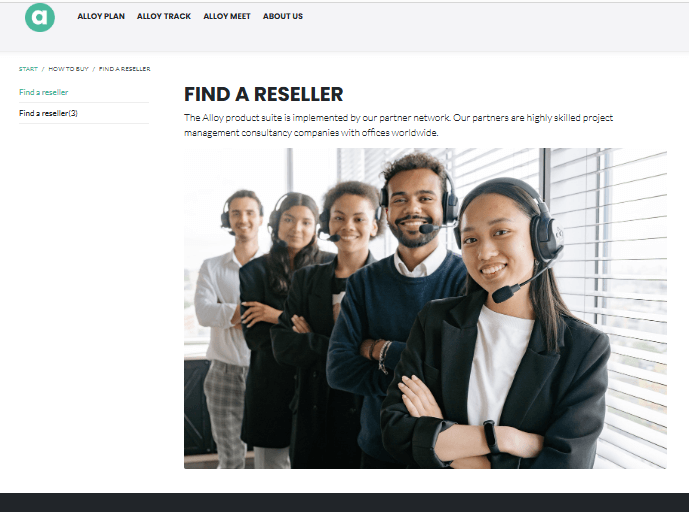
Let’s get started to personalize the page to add a Priority Call button.

Step 1: Create Audience

  • Create an audience with the rules you would like to define.
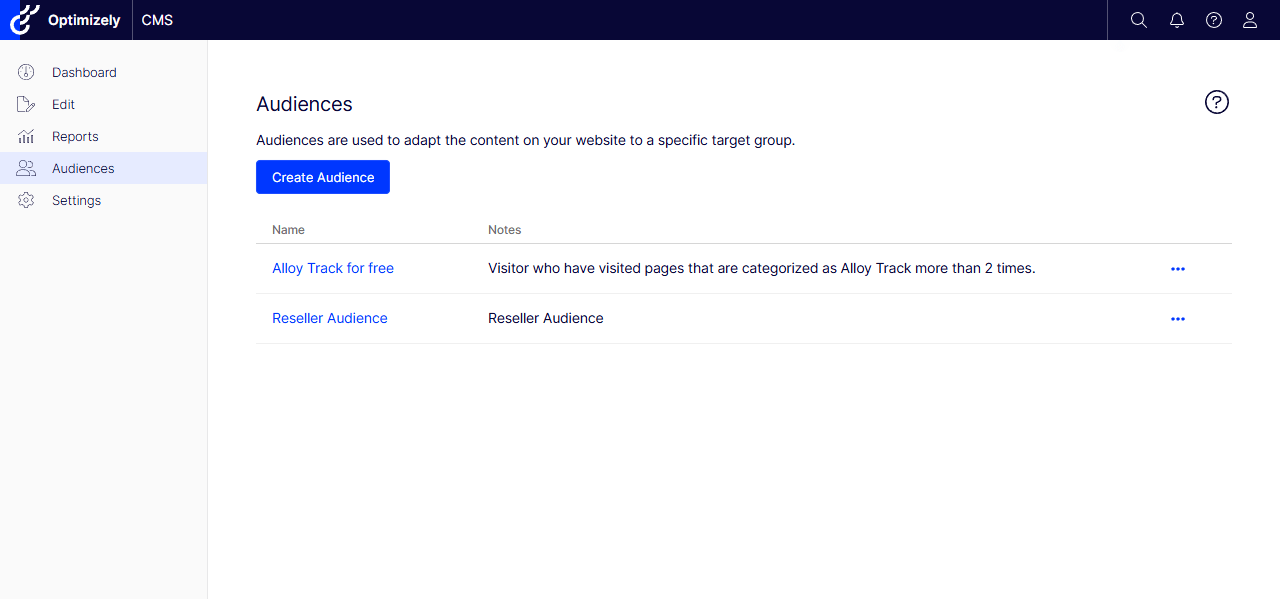
Optimizely-CMS-Personalization-Content-Block.png

  • I created an Audience called Priority Call specifically for customers who can call the priority phone number during business hours.
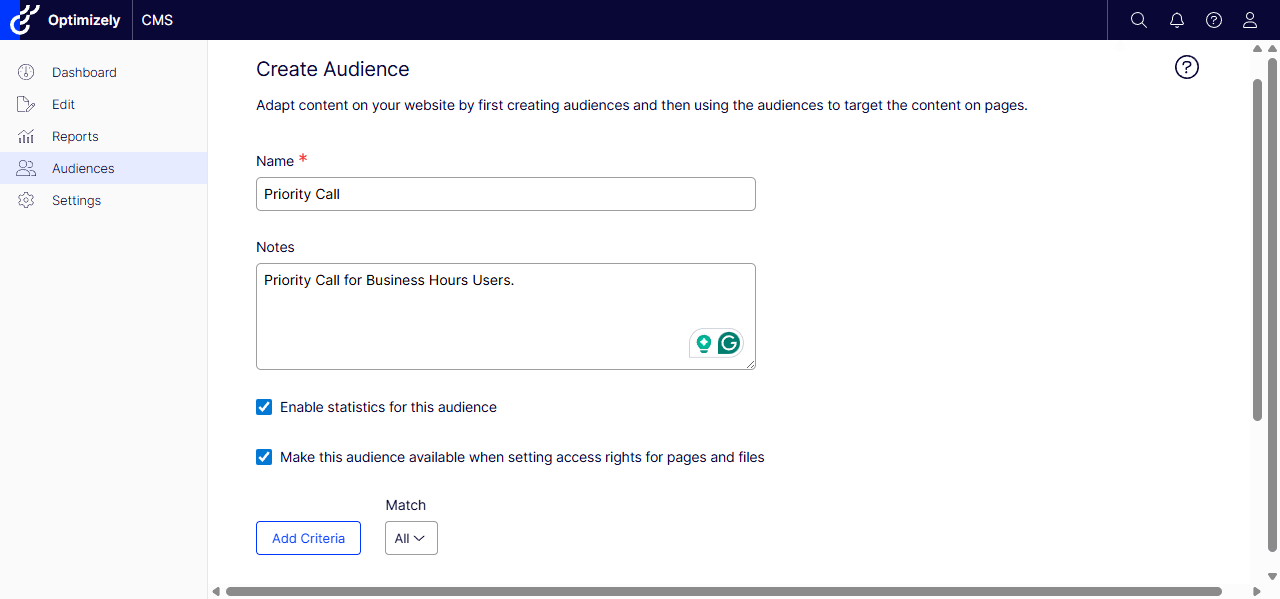
Optimizely-CMS-Personalization-Content-Block-1.png

  • Add Criteria based on the project needs – multiple criteria can target specific customers.
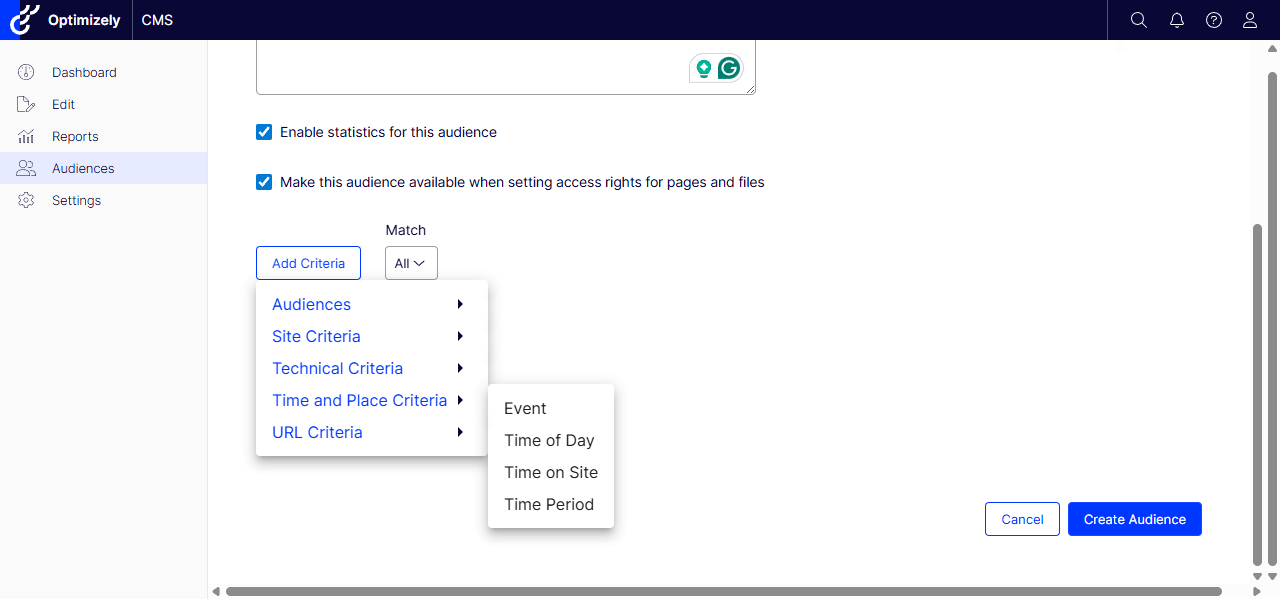
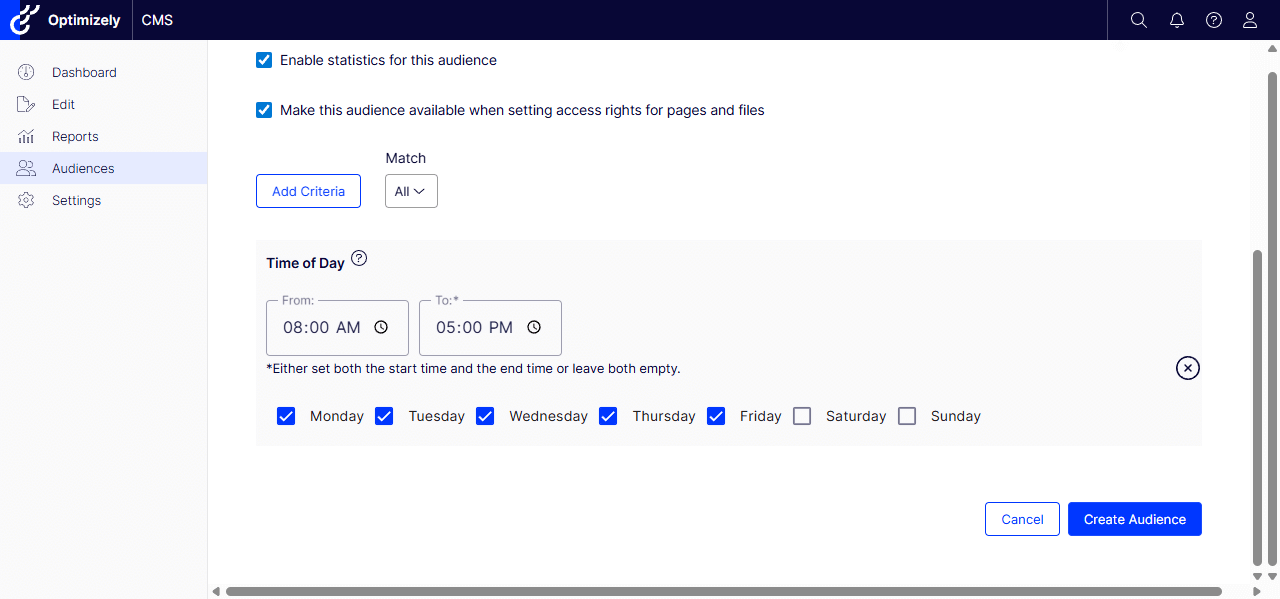
  • Added Time of Day criteria – Monday to Friday from 8 am to 5 pm.
Optimizely-CMS-Personalization-Content-Block-3.png


Step 2: Create a Personalized Block

  • Now that we have created the target Audience. Let’s make a personalized block for a page.
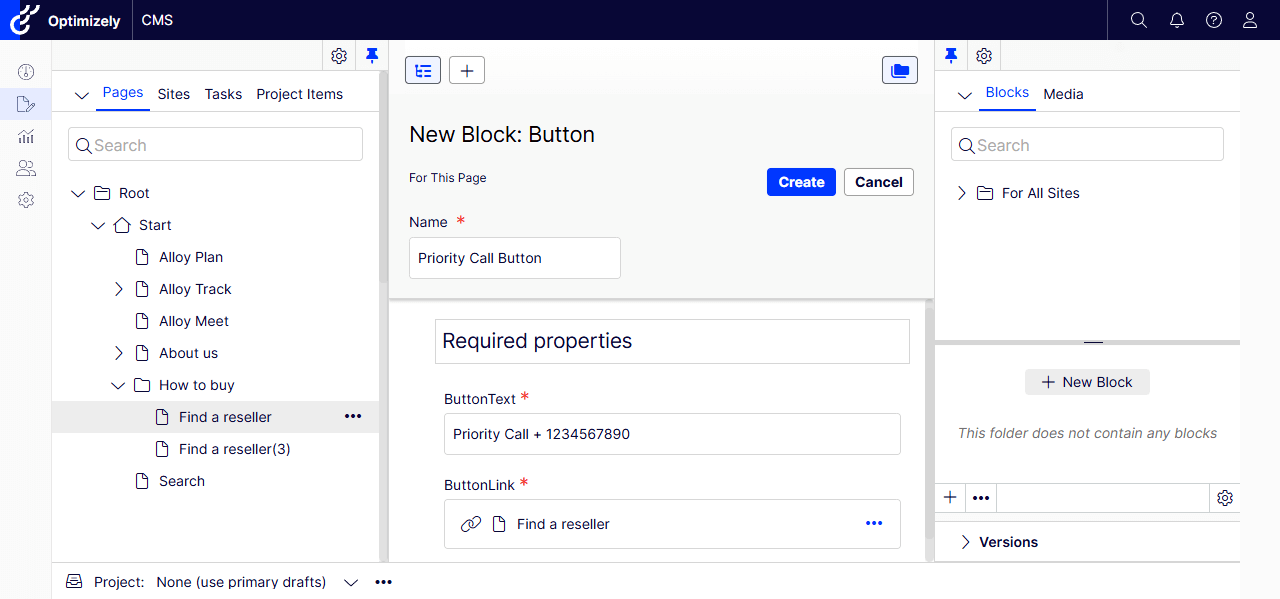
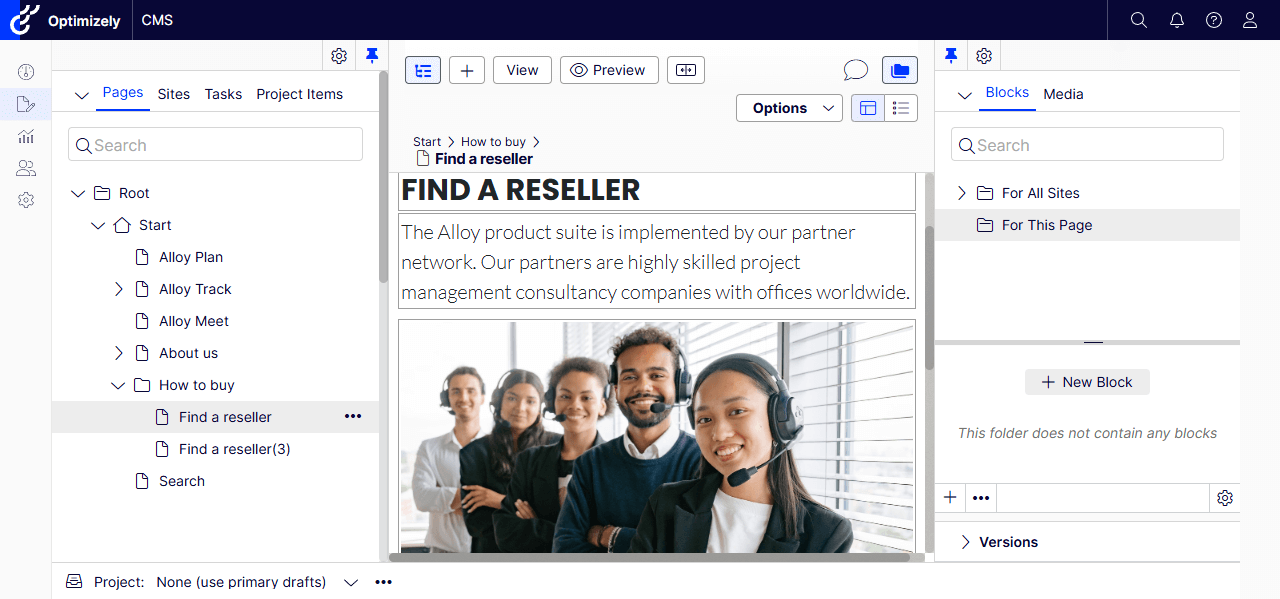
  • I chose the ‘Find a Reseller’ page and, in Blocks, I am going to create a New Block for this page – you can also create one for the All Sites.
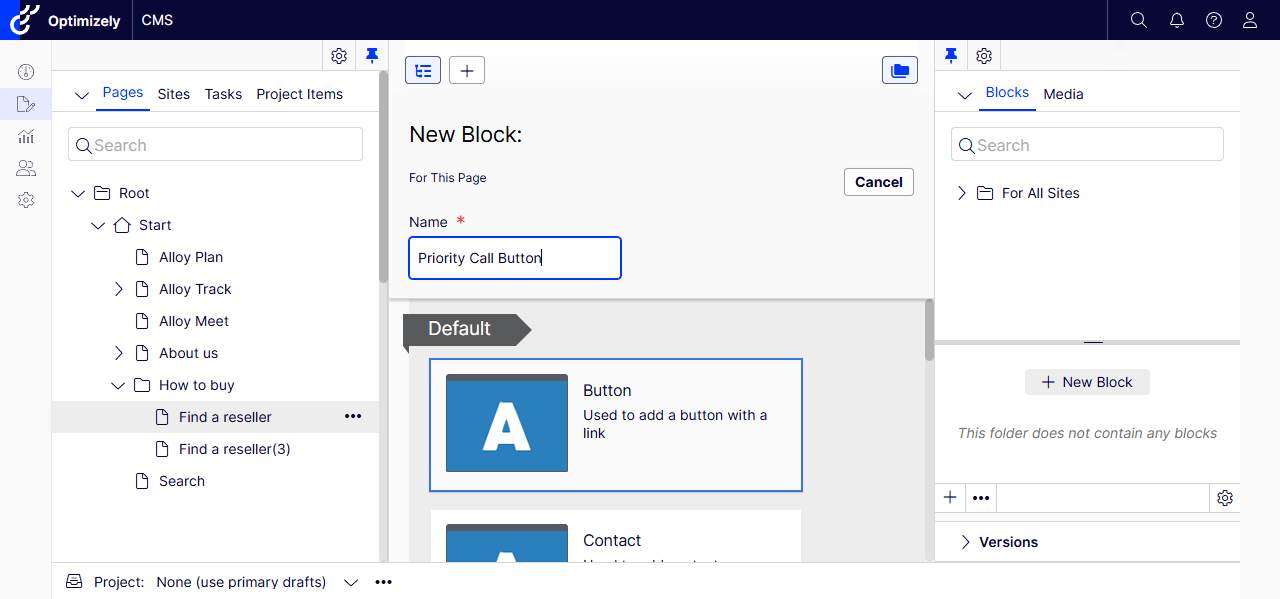
  •  Selected Button as the New Block and gave it a name – Priority Call Button.
  • Filled out the Button Text and Link.

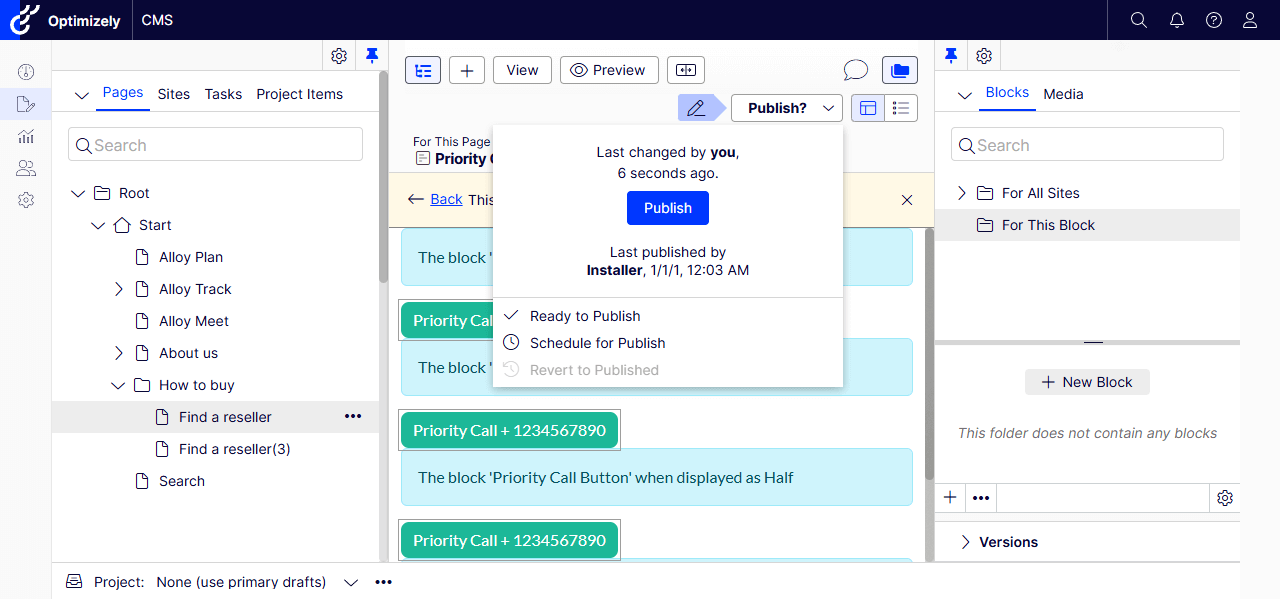
  • Please make sure to Publish the Block – If not, it will not be visible on the page. 
  • I have made this mistake and wondered why the block isn’t appearing 🙂
 

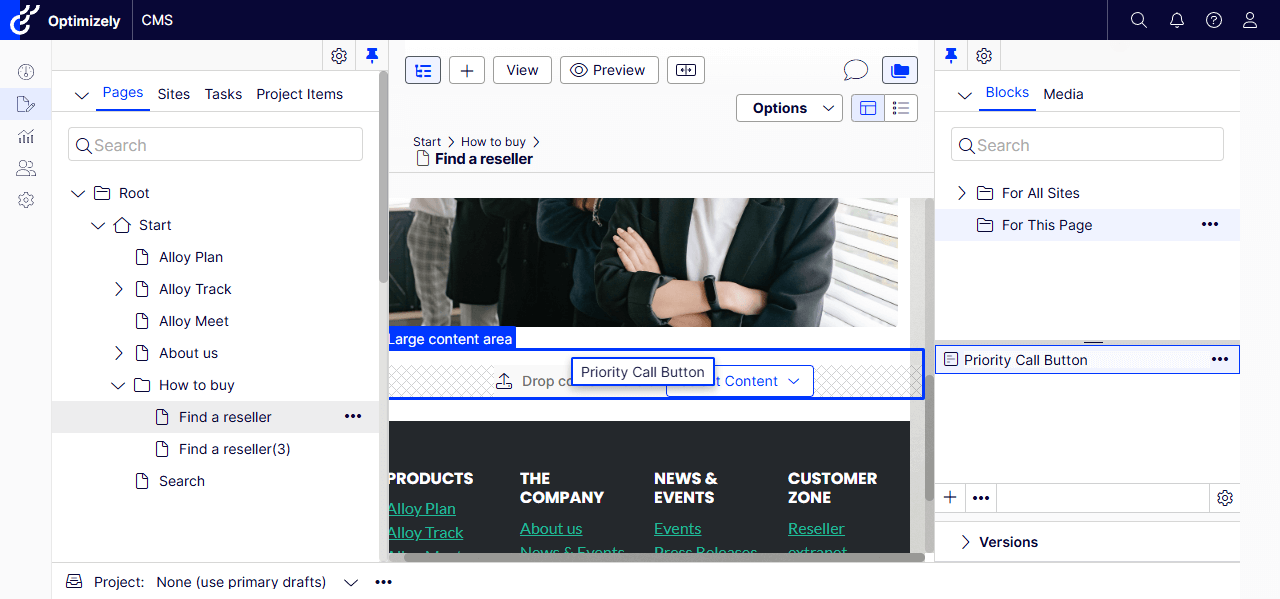
3. Add the Personalized Block to a Page

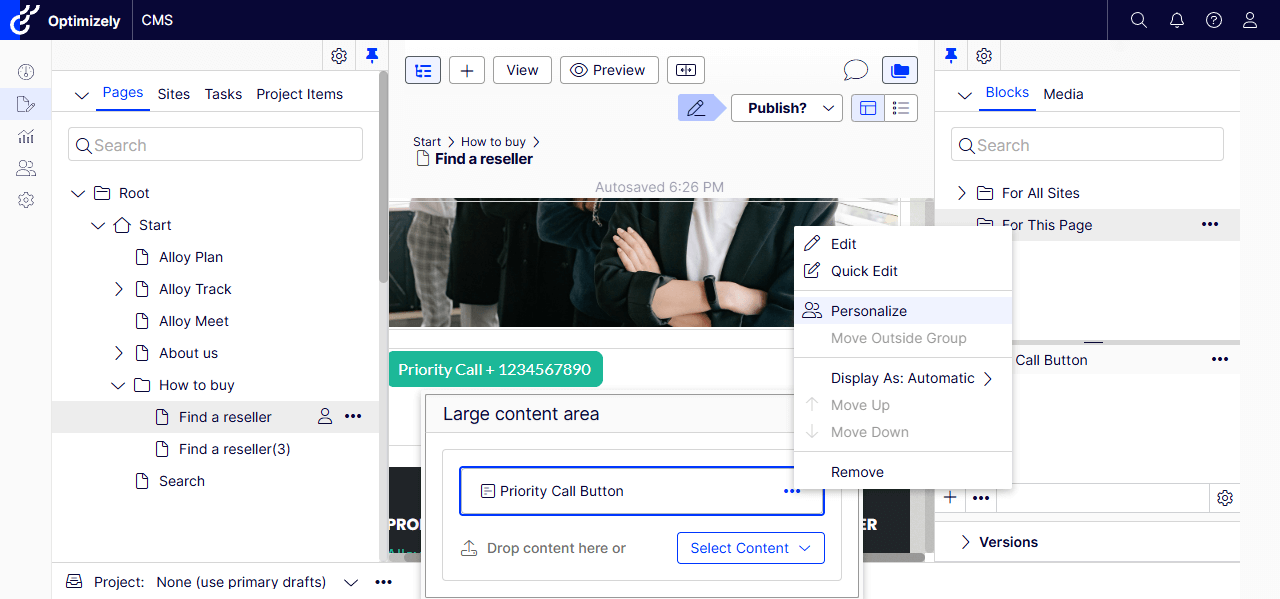
  • Let’s drag and drop the Priority Call Button block into the Large Content Area or any Content Area.
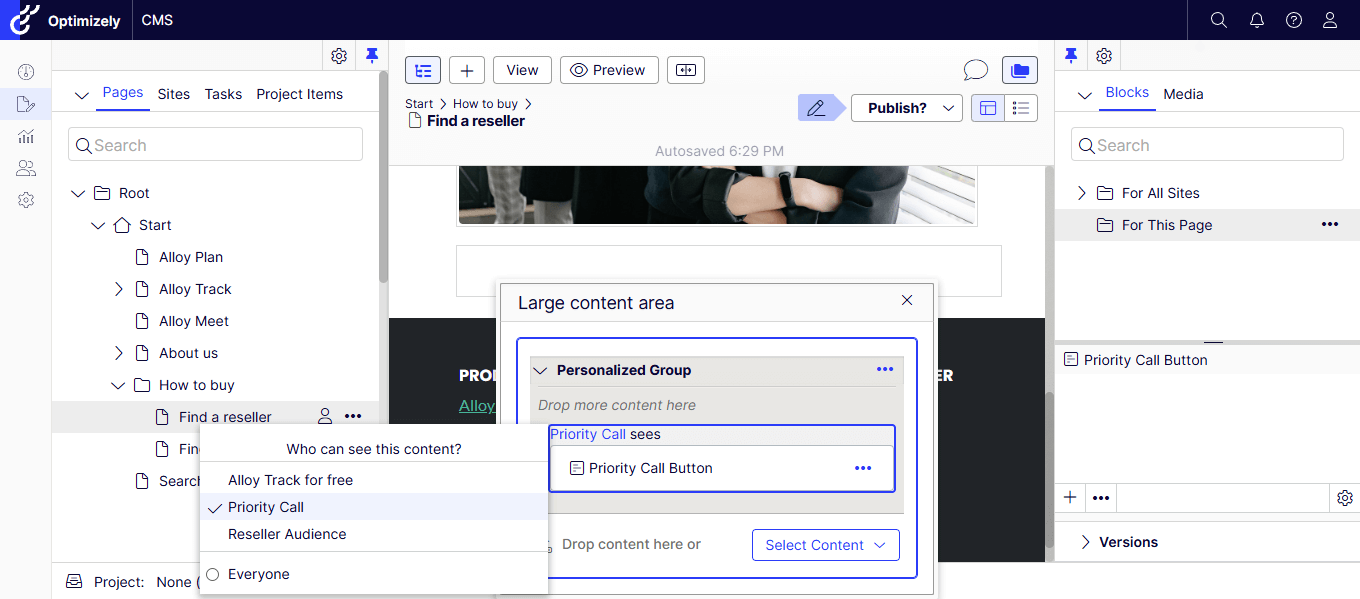
  • Let’s personalize the button.

  • Everyone is by default – let’s change it to our new audience Priority Call.
  • Let’s publish the page and view it during business hours (our Audience criteria)
  • Yay! We could see the Priority Call Button!

If you prefer watching a video, my quick recording –

Hope this helps.

Happy Optimizing!

0

Sitecore CDP and Personalize Certification – Tips and Tricks

Sitecore CDP and Personalize Certification - Tips and Tricks

Sitecore CDP and Personalize Certification – Tips and Tricks

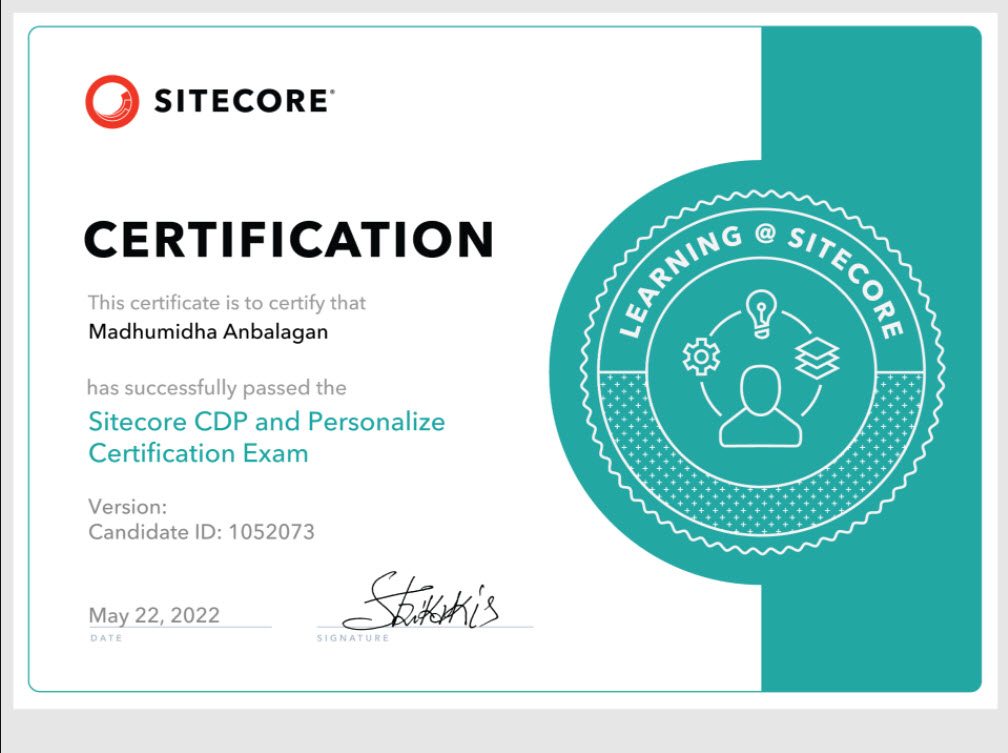
Here are some tips and tricks, that helped to get certified in Sitecore CDP and Personalize.

The first step is to register for the Sitecore CDP and Personalization exam and block a date that really helps in achieving the goal.

  1. Go through the documentation once you complete email Sitecore partner enablement partnerenablement@sitecore.com to get access to the sandbox environment.
  2.  The Sitecore Partner Enablement will send an invitation to access the Sandbox. 
  3.  Now go through the instructor-led training along with lab assignments
    Tip: I have used my blog site as a sample site to do assignments. It would be ideal to have a sample commerce site for order-related assignments.
  4. Familiarize with the core concepts and utilize the QA tool to test out various scenarios for Experiences and Experiments.
  5. Make sure to take the quiz after each section, which will give an idea of your understanding of the concepts.
  6. The questions were use case and scenario-based, so understanding the concept is crucial.
  7. The exam has 30 multiple-choice questions that have to be completed in an hour. You will have a good amount of time to revisit the answers.
    Note: Beginning of the exam, It says it has 50 questions, this might be a typo. It has only 30 questions, chill out.

Good luck! Happy Sitecoring!

3