Tagged: Sitecore Personalize

Sitecore Personalize : Custom Web Template Integration


Sitecore Personalize Custom Web Template Integration.png

I’ve been delving deeper into Sitecore Personalize and have discovered how to incorporate its custom Web Templates into the website.

Let’s dive into the process of creating custom Web Templates and how to utilize them in Web Experiences.

Create Web Template

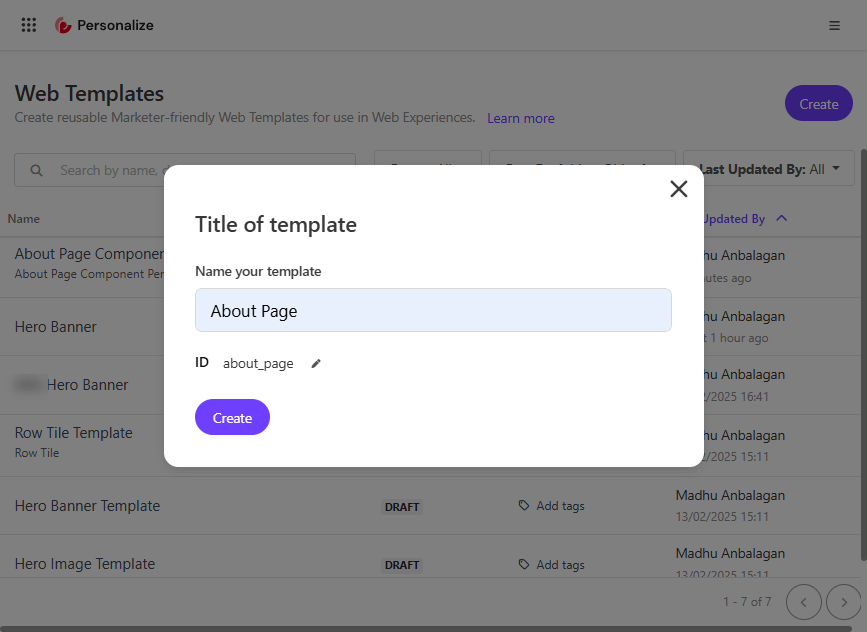
Let’s navigate to Web Templates in Sitecore Personalize and create it.

Sitecore-CDP-and-Personalize-Web-Templates-Experiences-1-2.png


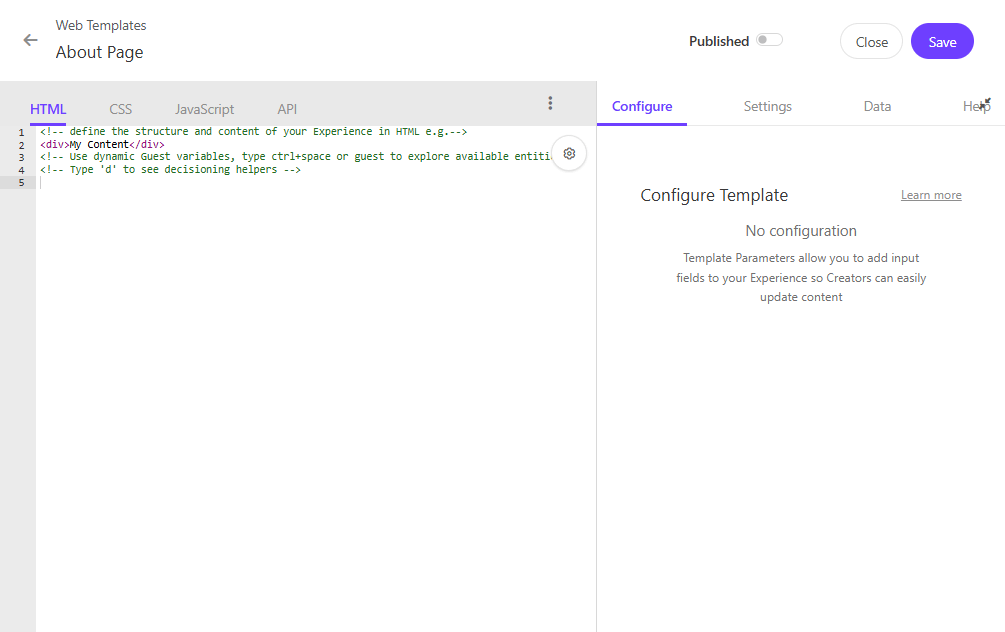
The Web Templates have the high flexibility of HTML, CSS, JavaScript, and API tabs to configure.

  • HTML: Define the structure and content of your web template. This is where you can create the basic layout and elements that will be displayed on your website.

  • CSS: Style your web template to match your brand’s look and feel. You can add custom styles to ensure that the template is visually appealing and consistent with your website’s design.

  • JavaScript: Add interactivity and dynamic behavior to your web template. JavaScript allows you to create engaging user experiences by adding features like animations, form validations, and more.

  • API: Configure API responses to integrate with your organization’s data.

Sitecore-CDP-and-Personalize-Web-Templates-Experiences-2-1.png


To build the custom web template, let’s say I want to Personalize the About page of my blog.

To create HTML and CSS, we don’t need to dive into the code. A tool called SnipCSS can turn any section of the website into a reusable component.

SnipCSS

SnipCSS is a powerful tool designed to help web developers extract CSS and HTML snippets from any web element or widget. The main key feature is extracting all HTML, images, and CSS with a single click.

Download the Chrome extension – https://chromewebstore.google.com/detail/snipcss/hbdnoadcmapfbngbodpppofgagiclicf

After installing, there is no need for signup unless Pro features are needed.

Sitecore-CDP-and-Personalize-Web-Templates-Experiences-6.png


Running the SnipCSS

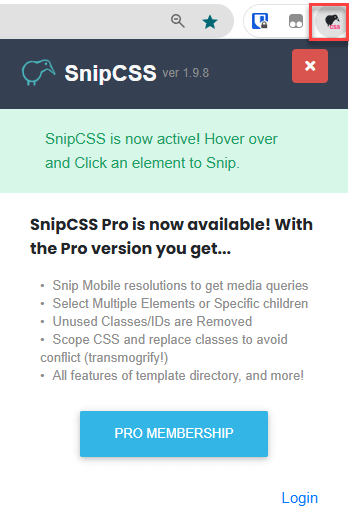
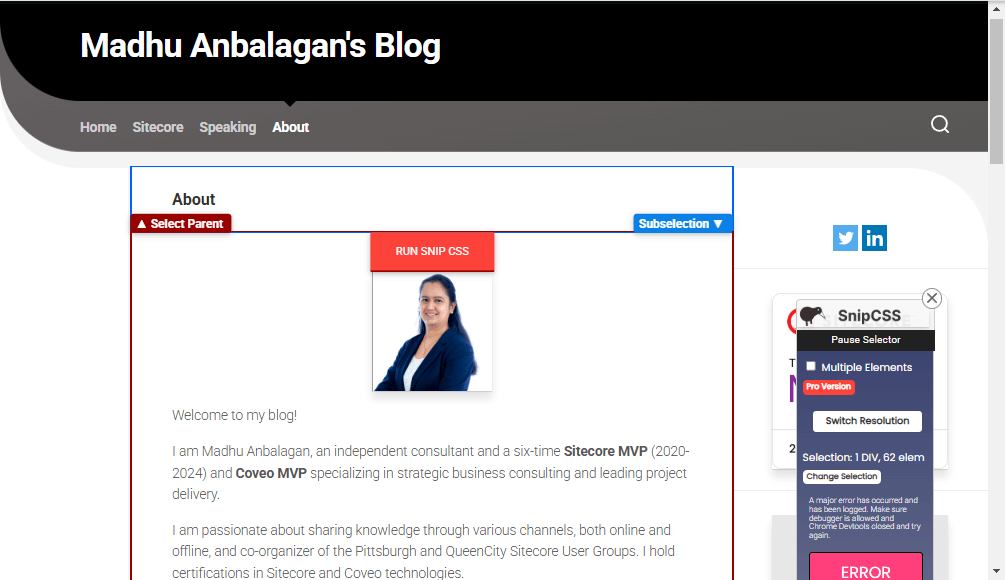
Let’s hover over the section we want to personalize and run the Snip CSS.

Sitecore-CDP-and-Personalize-Web-Templates-Experiences-8.png


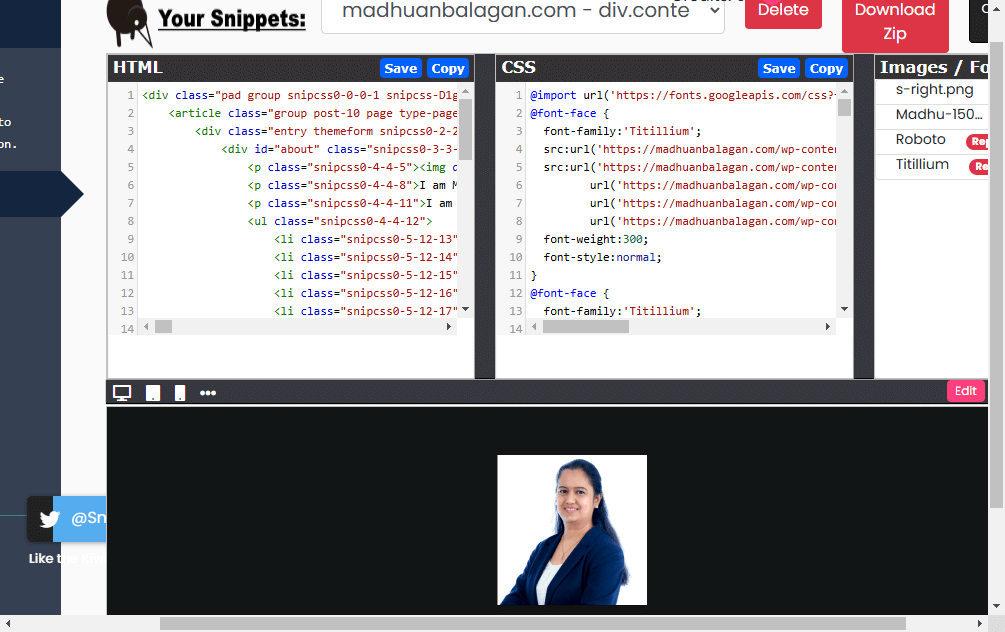
A cute Kiwi will come, analyze the section in a second, and open a new tab with HTML and CSS of the section.

Sitecore CDP and Personalize - Web Templates-Experiences-9.png


Web Template HTML and CSS

Let’s copy and paste the HTML and CSS into the Web Template that we created.

Sitecore-CDP-and-Personalize-Web-Templates-Experiences-13.png


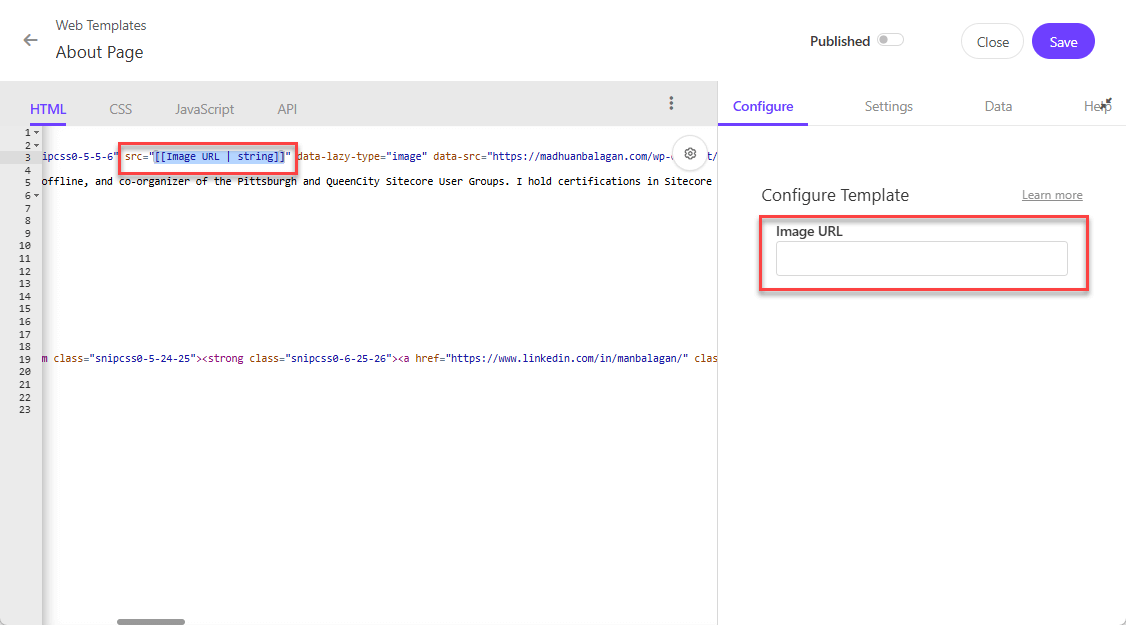
Convert all hard-coded text into parameters to ensure it can be reused throughout the website.

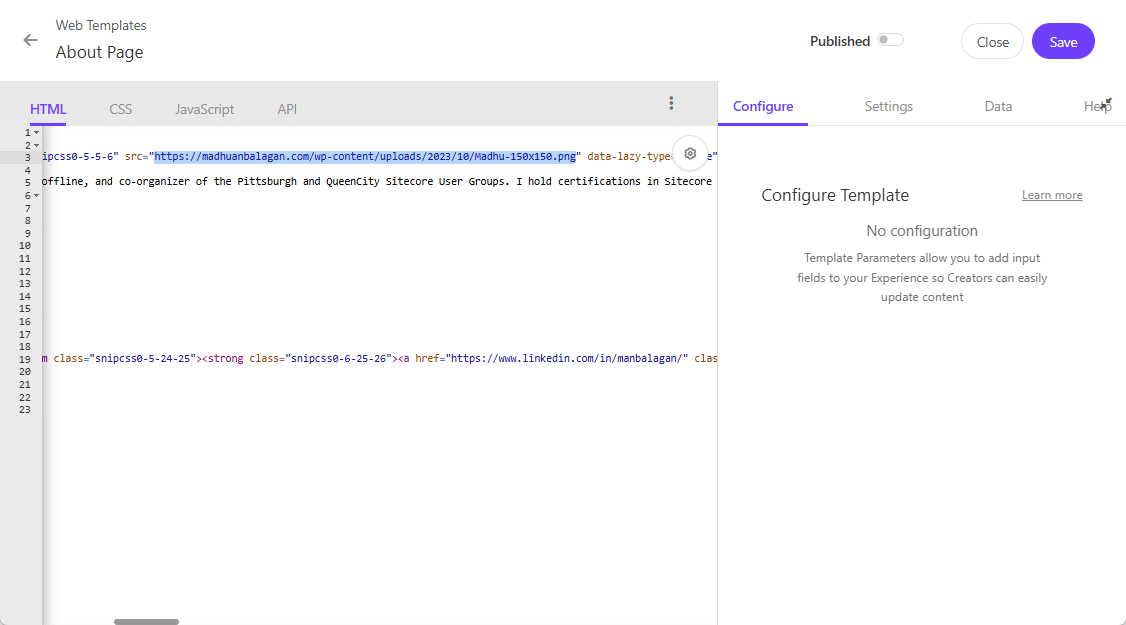
Let’s convert the image source into a dynamic image URL.

Sitecore-CDP-and-Personalize-Web-Templates-Experiences-10-1.png

To make it configurable, substitute it with a parameter name and type

[[ Image URL  | string ]]

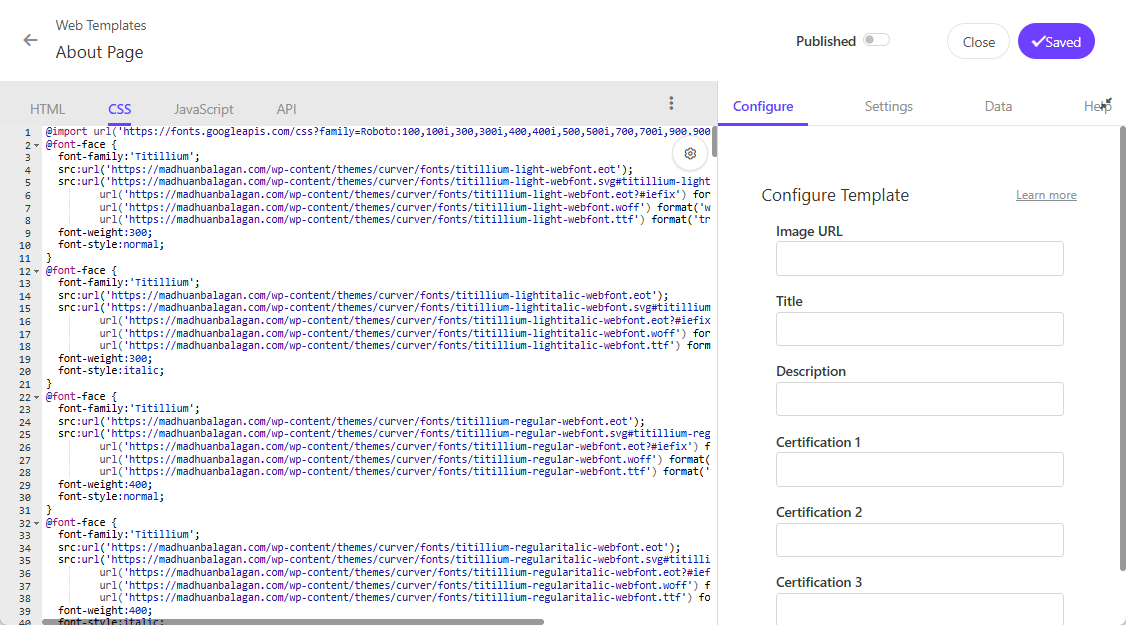
Sitecore-CDP-and-Personalize-Web-Templates-Experiences-11.png


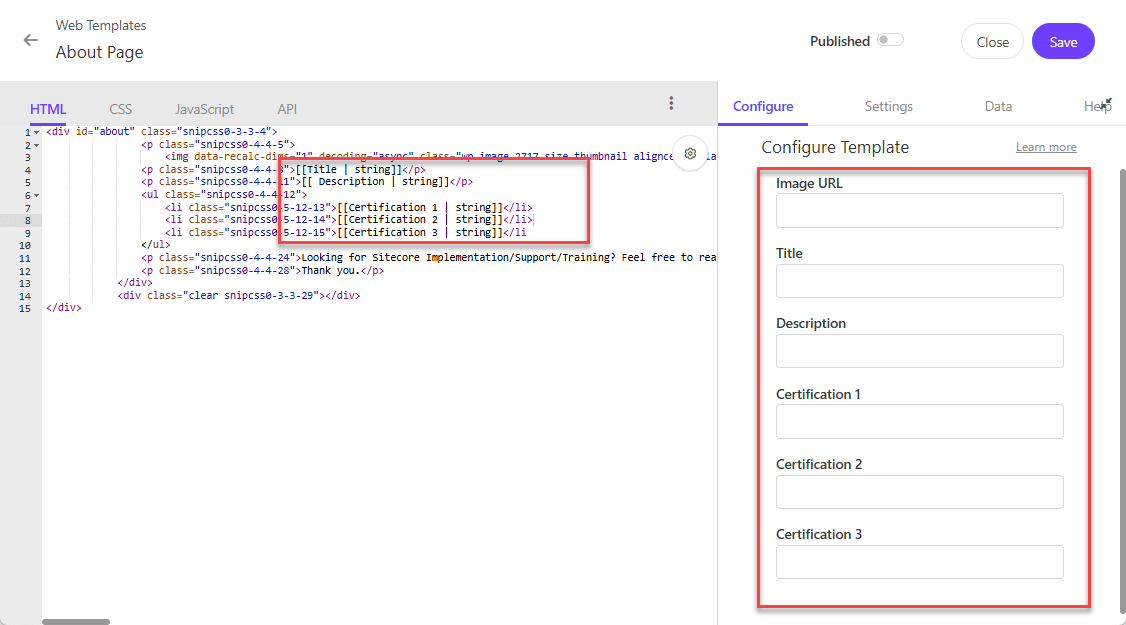
Similarly, I have configured more fields.

[[ Title | string ]]

[[ Description | string ]]

[[ Certification 1 | string ]]

[[ Certification 2 | string ]]

[[ Certification 3 | string ]]

Sitecore-CDP-and-Personalize-Web-Templates-Experiences-12.png


Web Template JavaScript

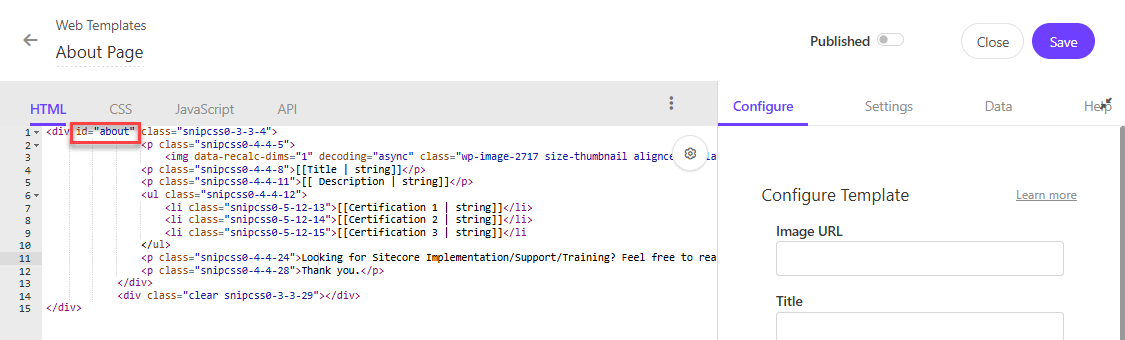
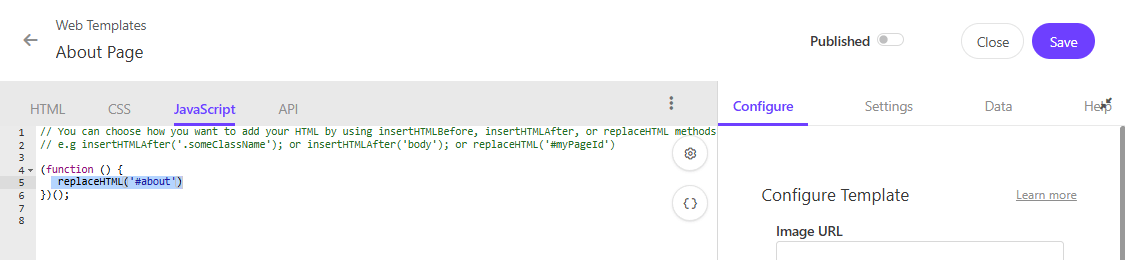
Now we need to tell whether the section needs to be replaced/added after some ClassName or ID of the page.

Let’s replace the section HTML with the ID of the div.

Sitecore-CDP-and-Personalize-Web-Templates-Experiences-15.png

Sitecore CDP and Personalize - Web Templates-Experiences-14.png

Settings

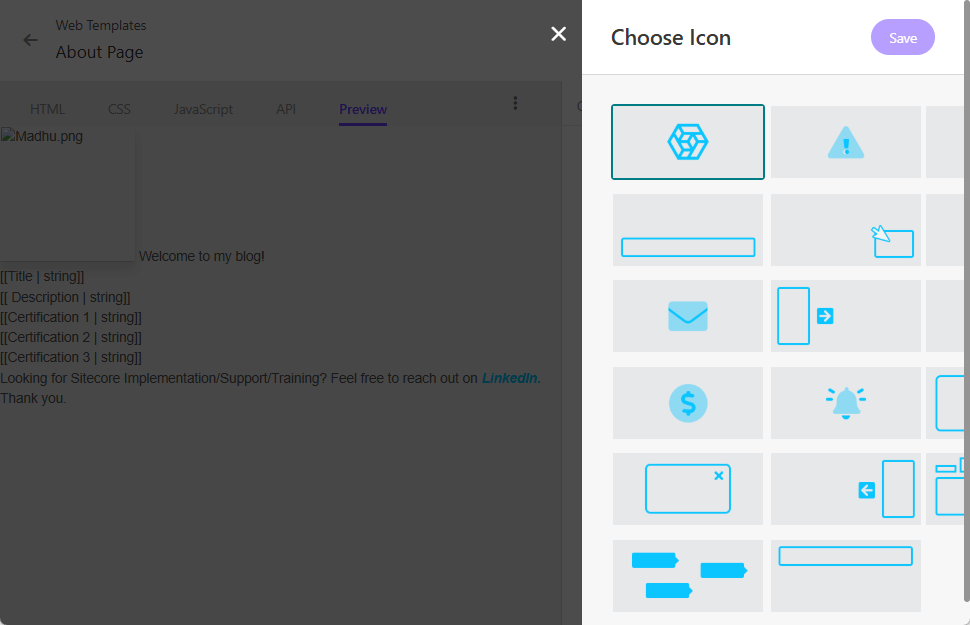
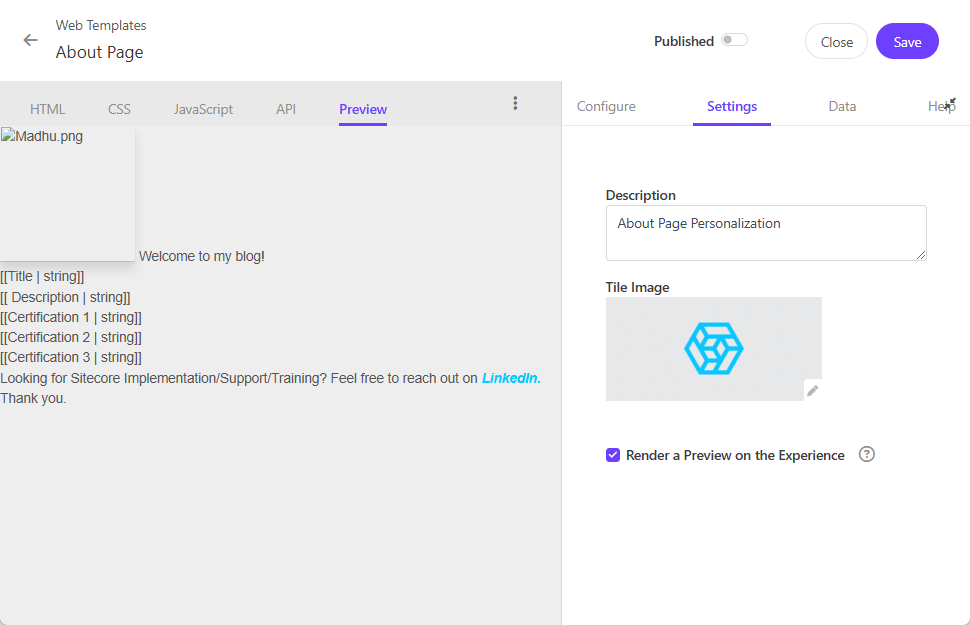
Let’s add a description for the web template and select an icon from the predefined options, as custom uploads are not allowed.

Sitecore-CDP-and-Personalize-Web-Templates-Experiences-17.png


Preview

Select the Render a Preview Experience checkbox and it adds a new tab to the web template for previewing.

Sitecore-CDP-and-Personalize-Web-Templates-Experiences-16.png


Publish/Draft

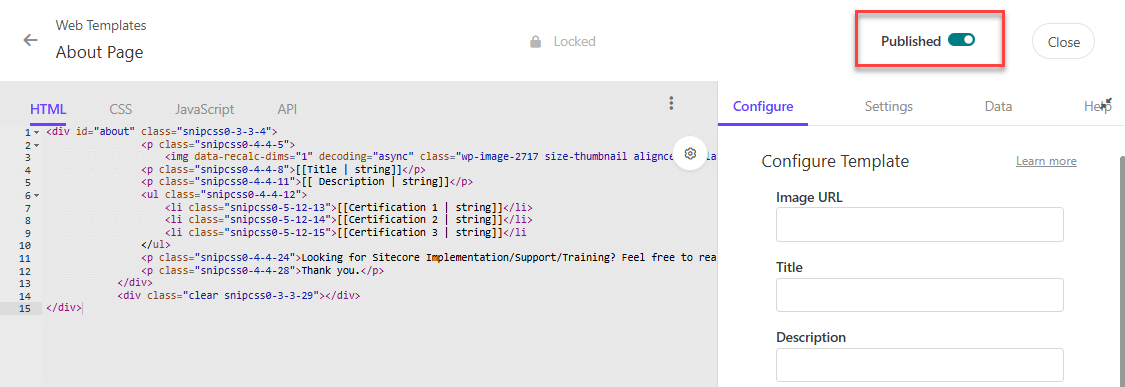
Enable the Publish button to activate live mode, which locks the web template.

To revert it to draft mode, disable the Publish button.

Sitecore-CDP-and-Personalize-Web-Templates-Experiences-18.png

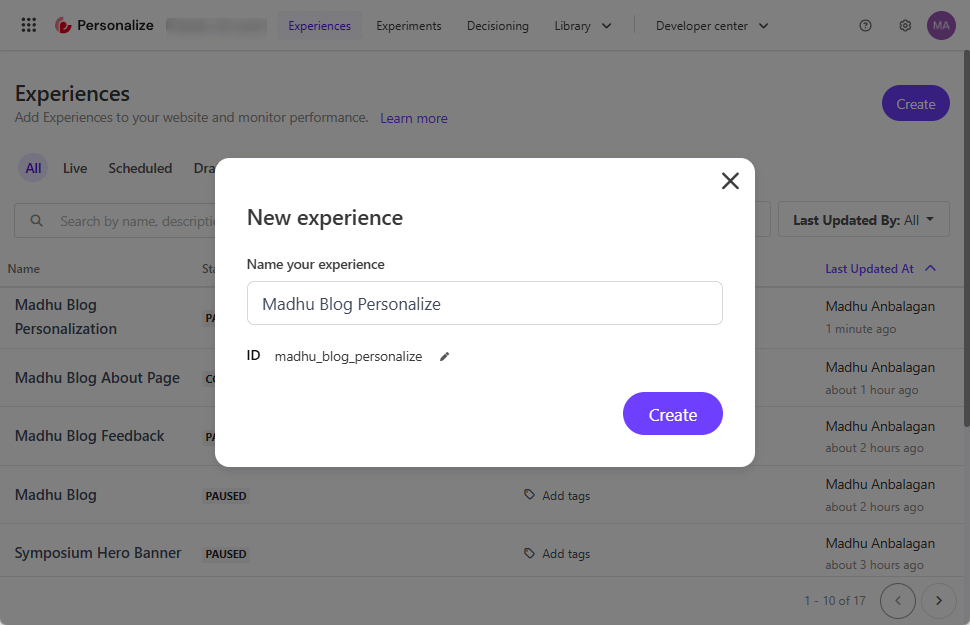
Create Experience

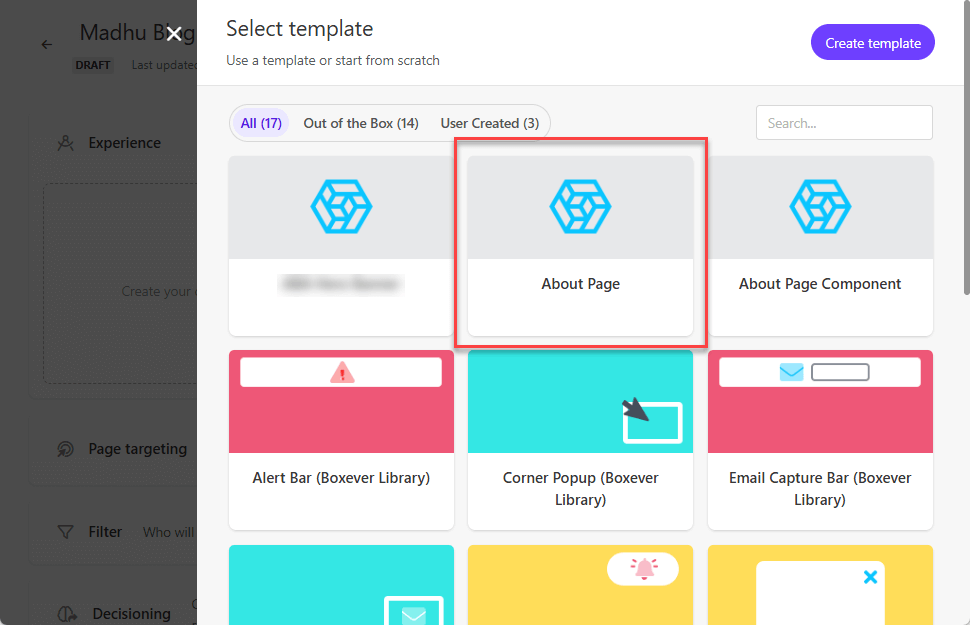
Let’s build an Experience using the Web Template we just created.

Sitecore-CDP-and-Personalize-Web-Templates-Experiences-19.png


Create a Variant

Now variant lists our custom Web Template, let’s go.

Sitecore-CDP-and-Personalize-Web-Templates-Experiences-20.png


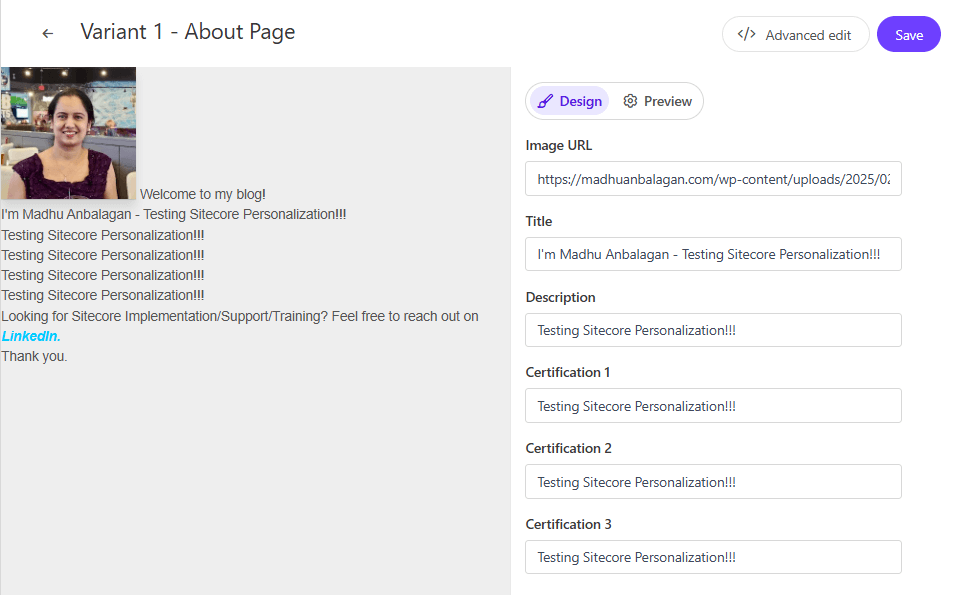
Enter the field values for Image URL, Title, Description, Certification 1, Certification 2, and Certification 3.

Sitecore-CDP-and-Personalize-Web-Templates-Experiences-21.png


Page Targeting

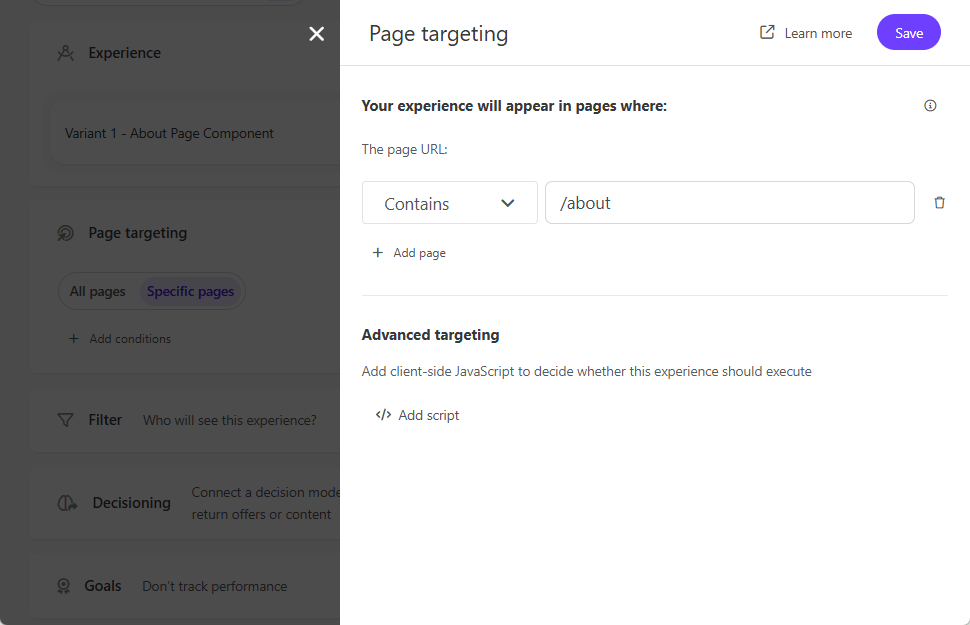
It is specifically for the About page, let’s add a condition.


Sitecore-CDP-and-Personalize-Web-Templates-Experiences-22.png

Preview

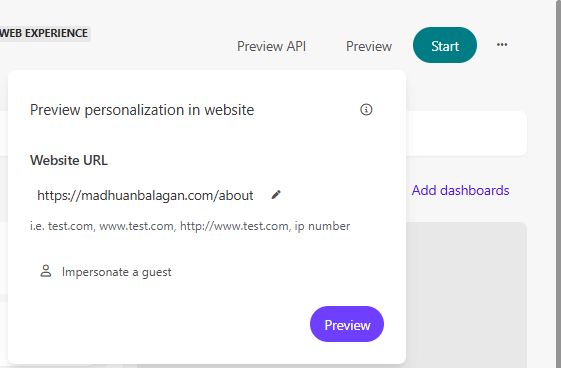
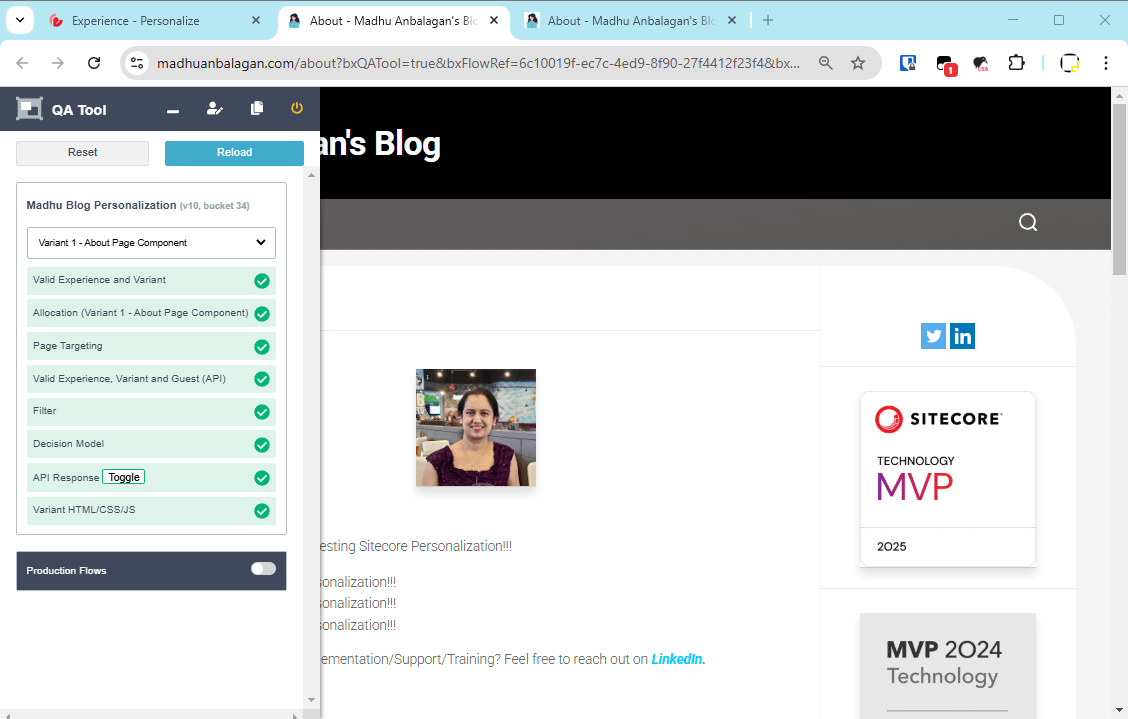
Let’s preview it for the About page URL.

Sitecore-CDP-and-Personalize-Web-Templates-Experiences-23.png

It’s working! Tada!

Sitecore-CDP-and-Personalize-Web-Templates-Experiences-23.png

Live mode

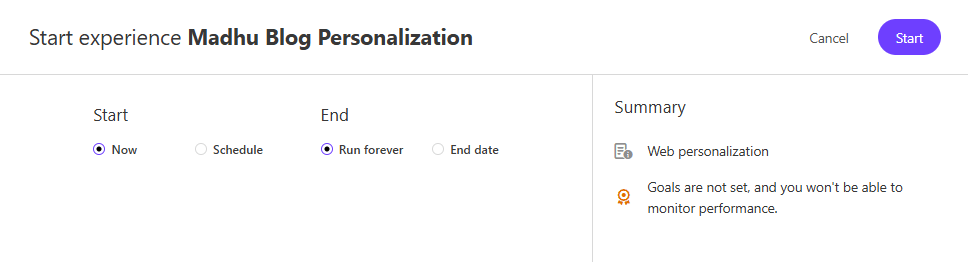
Let’s start the Experience – you can start now or schedule it later time.

Sitecore CDP and Personalize - Web Templates-Experiences-24.png

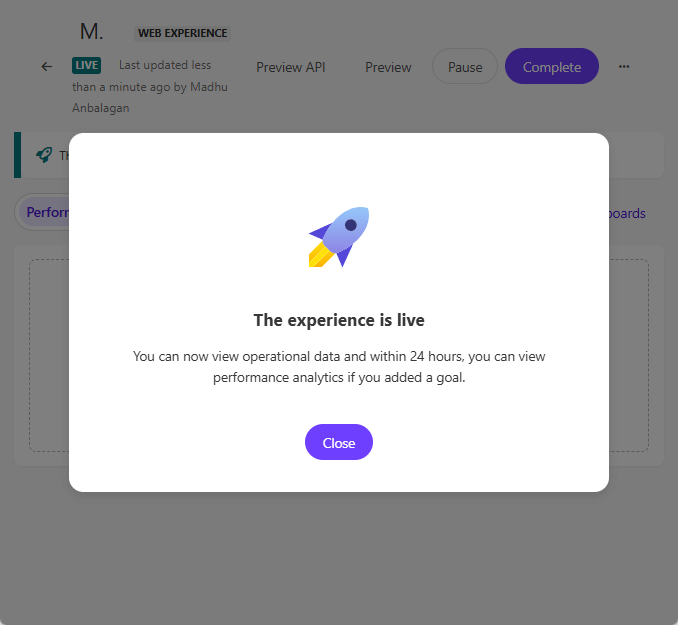
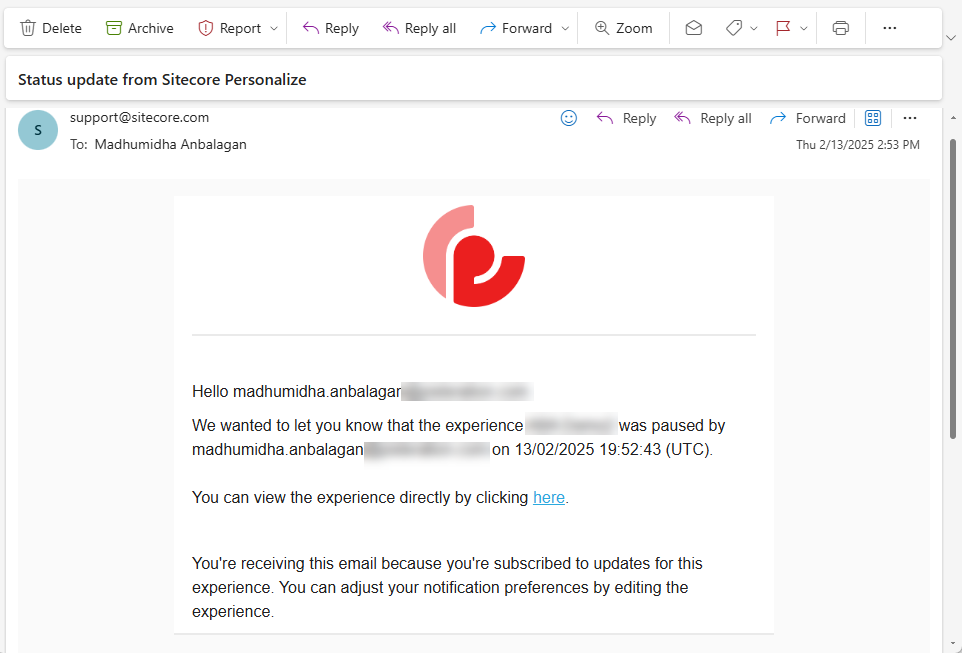
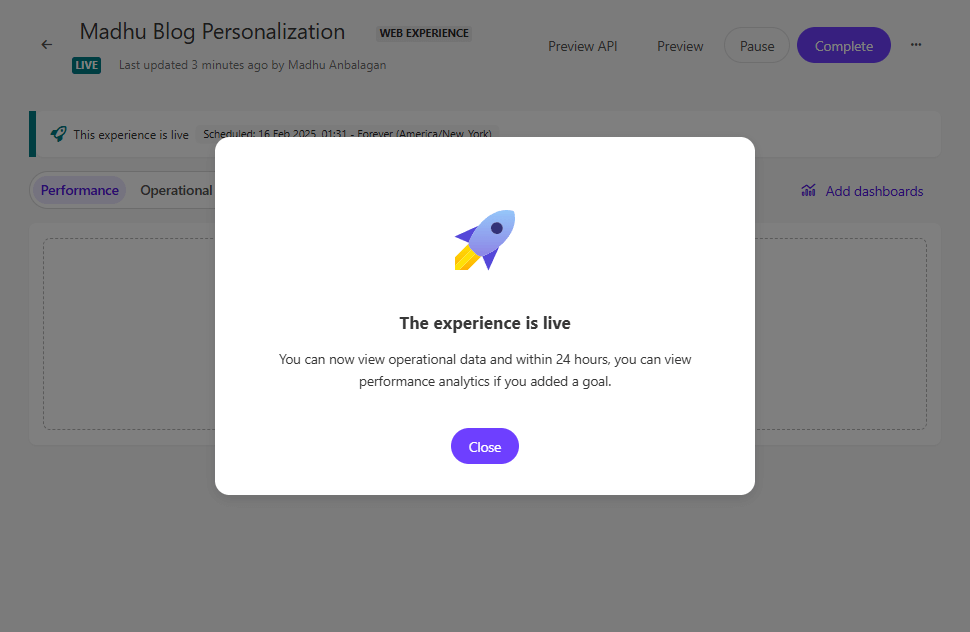
After a few seconds, it’s live now – If a notification is added, it will email that it’s published.

Sitecore-CDP-and-Personalize-Web-Templates-Experiences-25.png

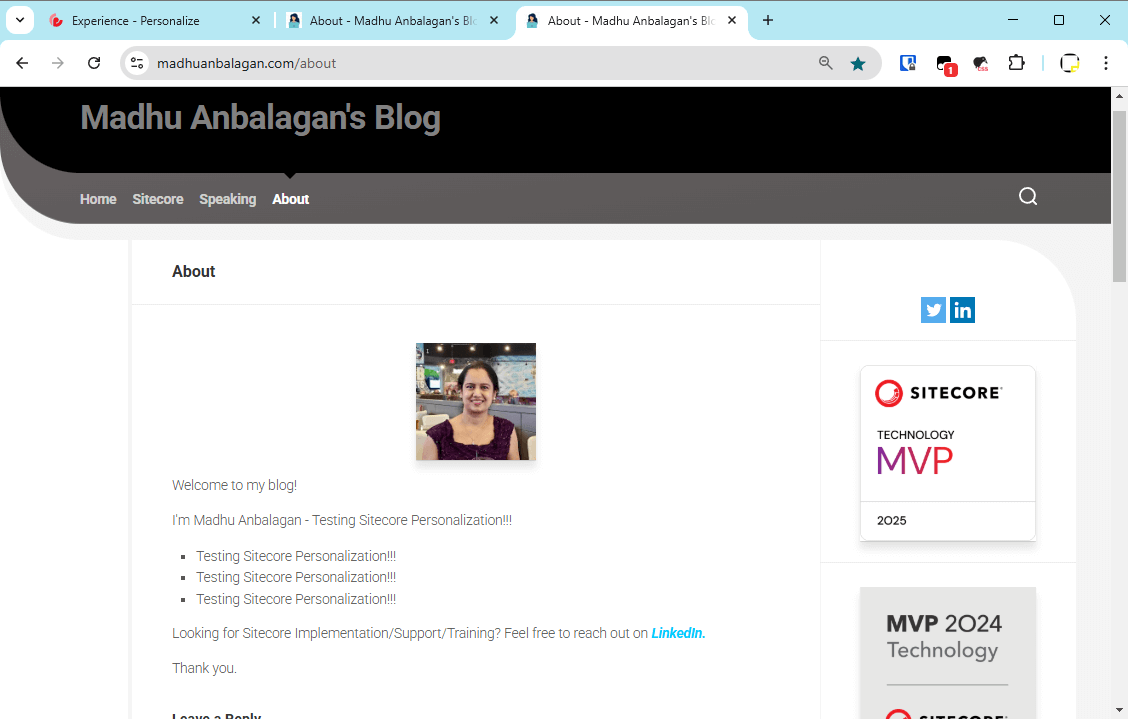
Let’s reload the page. Yahoo!!

Sitecore-CDP-and-Personalize-Web-Templates-Experiences-4.png


Hope this helps.

Happy Sitecoring!

0

Sitecore Personalize : Experiment A/B Testing Integration

Sitecore Personalize offers robust capabilities for A/B testing and experimentation, allowing you to optimize customer experiences based on real-time behavior and data analysis.

By running experiments, you can determine which variations of your content perform best and drive the desired outcomes.

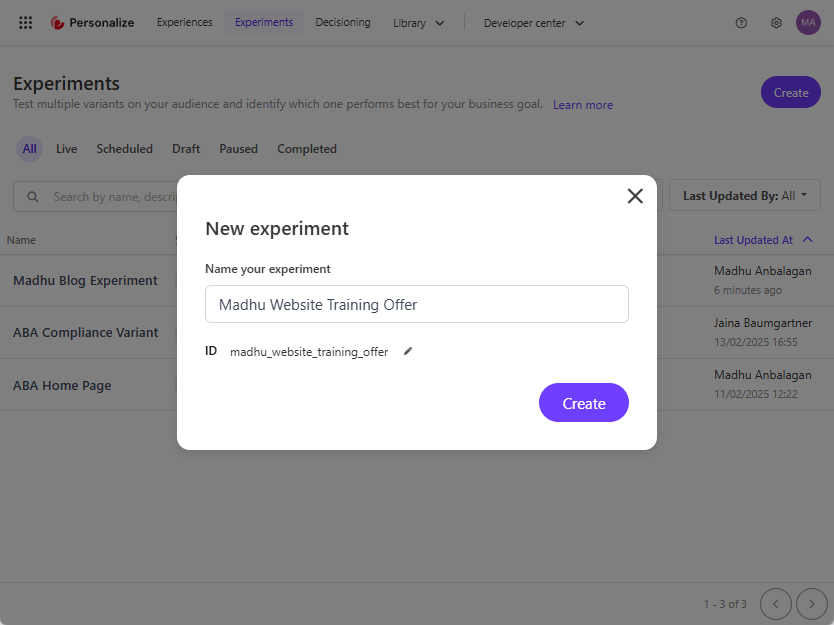
Let’s dive into creating the Web Experiment and test which variant appears on the website.

Web Experiment

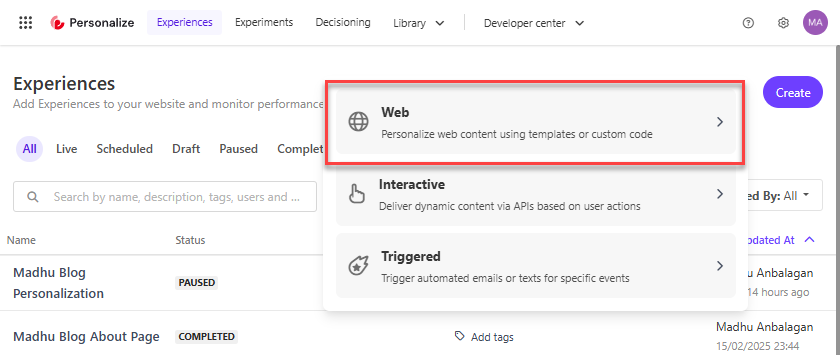
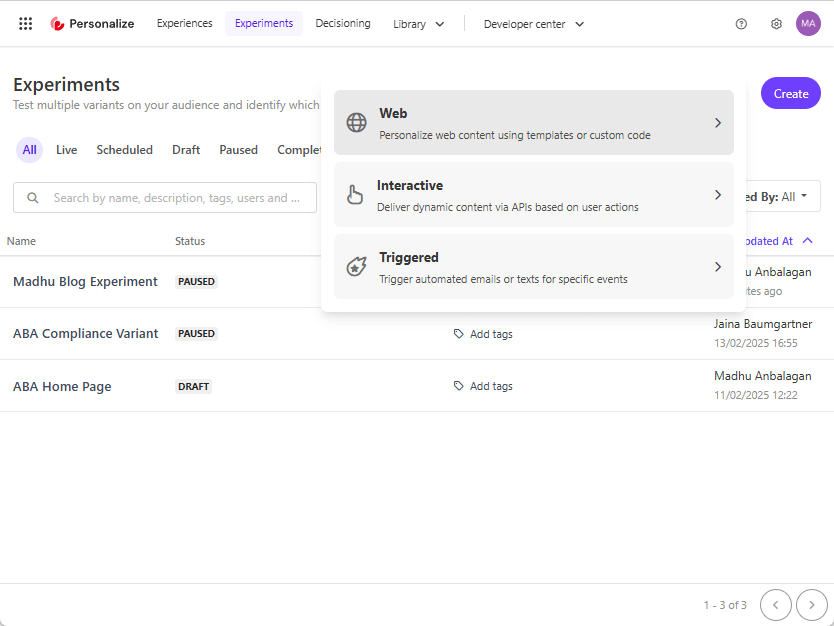
Create an Experiment based on Web, Interactive, or Triggered.

Sitecore CDP and Personalize - Web Experiment-A-B-Testing-1.pngTypes of Experiments:

  1. Web Experiments: Create dynamic offers and content using web templates. These experiments can be run on your website or deployed into web-based applications.

  2. Interactive Experiments: Develop dynamic offers and content from back-end systems for maximum server-side personalization.

  3. Triggered Experiments: Use FreeMarker to create dynamic offers and content that can be sent to Email Service Providers (ESP) or SMS/Push service providers.

I chose Web Experiment to keep it simple.

Sitecore-CDP-and-Personalize-Web-Experiment-A-B-Testing-2.png


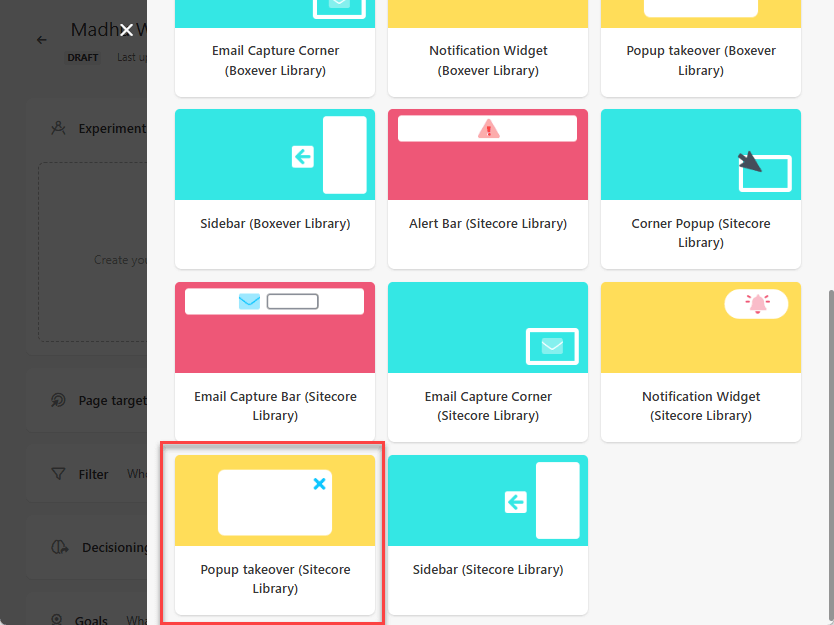
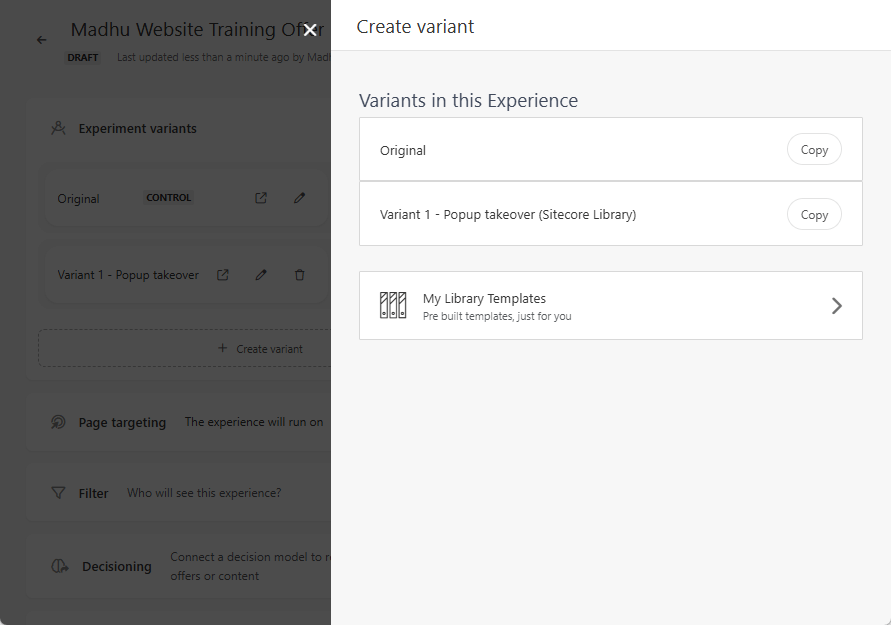
Create Variant

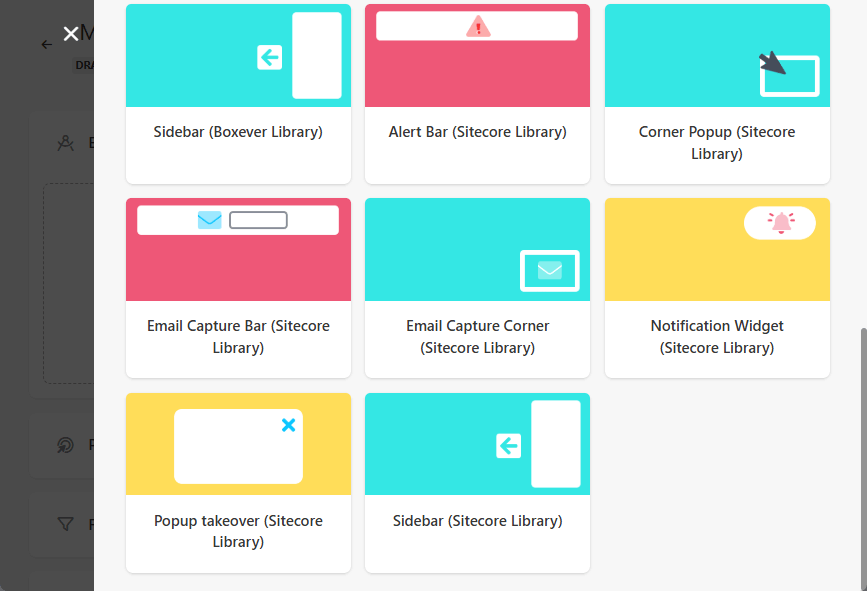
  • Click ‘+ Create Variant’ under the Experiment.
  • Pick the variant (e.g., Popup Takeover – Sitecore Library) or custom Web Template if available.


Sitecore-CDP-and-Personalize-Web-Experiment-A-B-Testing-3.png

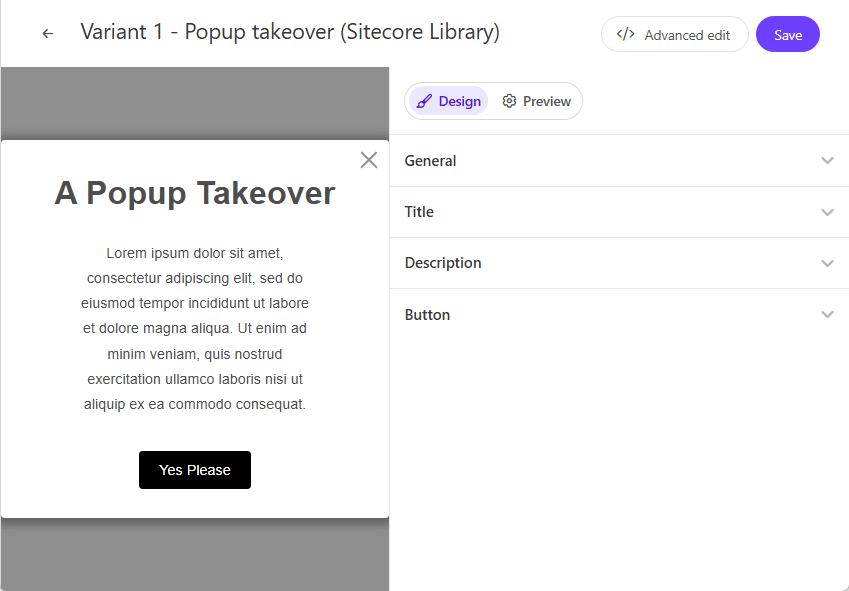
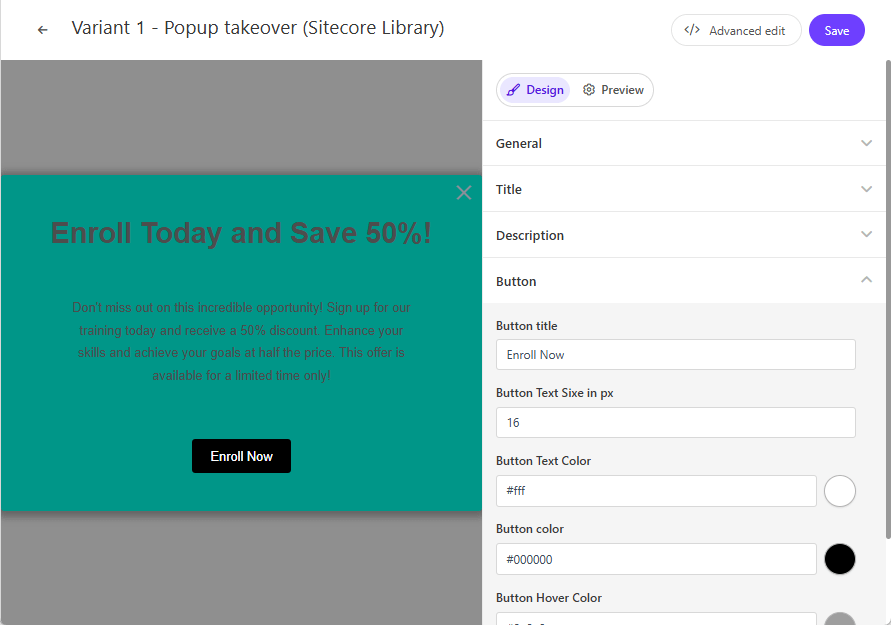
Variant 1

Fill out the details to make it customized according to the website.

  • Title
  • Description
  • Button 

Utilize Advanced edit if you like more customized with HTML, CSS and JS.

Sitecore-CDP-and-Personalize-Web-Experiment-A-B-Testing-4.png

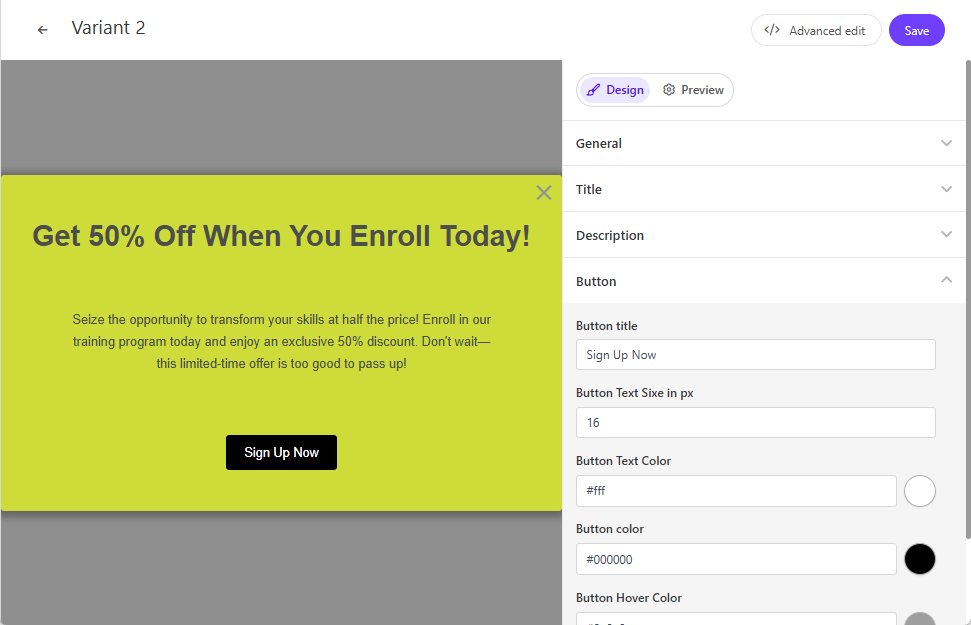
Variant 2

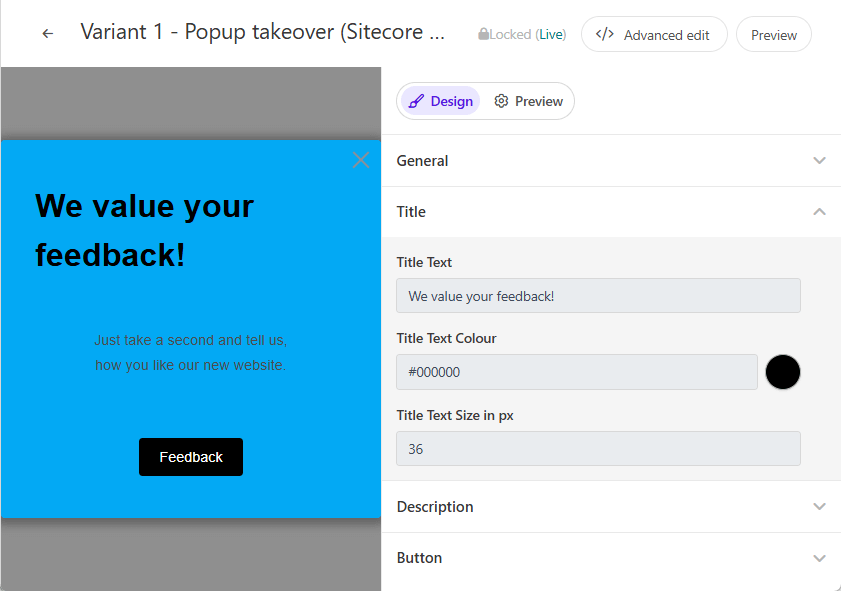
Let’s create Variant 2 of the Experiment. We can duplicate Variant 1 and make tweaks, which simplifies the process.

Sitecore-CDP-and-Personalize-Web-Experiment-A-B-Testing-5.png


I simply modified the background color, title, description, and button text to give it a different look and feel.

Sitecore-CDP-and-Personalize-Web-Experiment-A-B-Testing-6.png

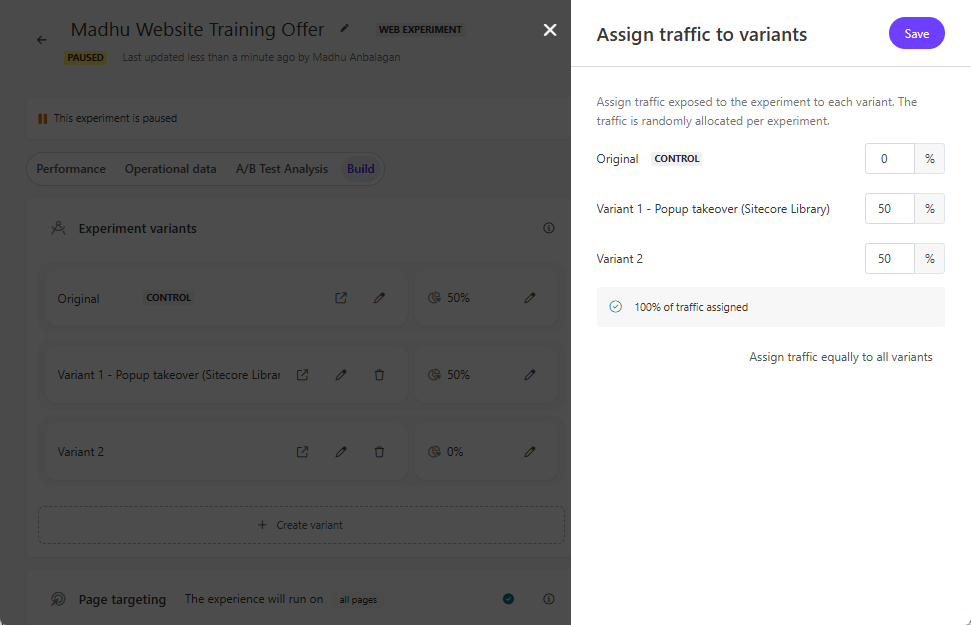
Traffic Control

Now that variants are created, let’s assign the traffic for each variant.

I’m going with 50% for each variant and make sure that Control + Variants should be 100%.

  • Control – 0% (Orinigal version)
  • Variant 1 – 50% traffic
  • Variant 2 – 50% traffic

Sitecore-CDP-and-Personalize-Web-Experiment-A-B-Testing-7.png

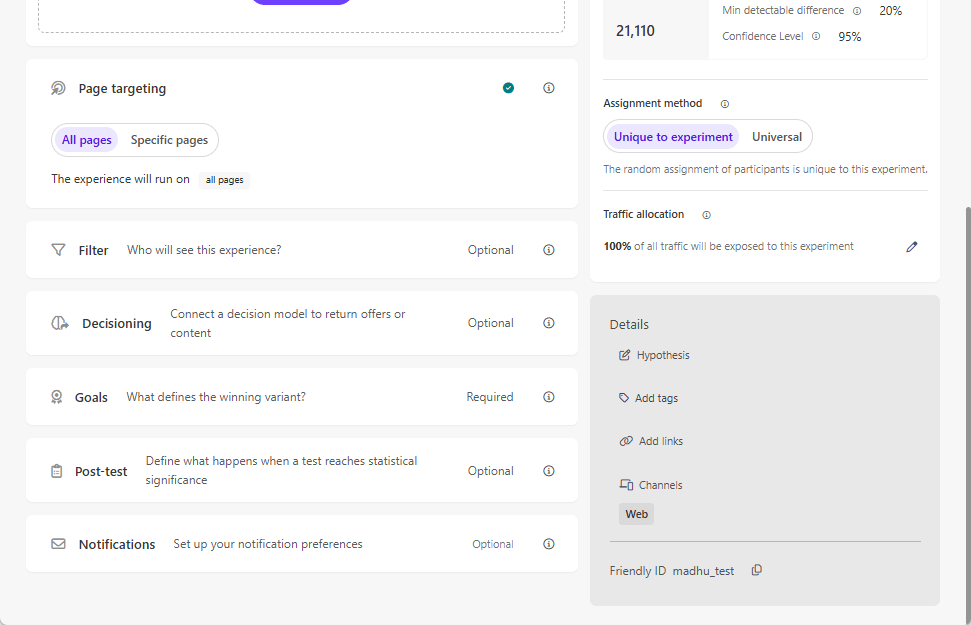
Page Targeting

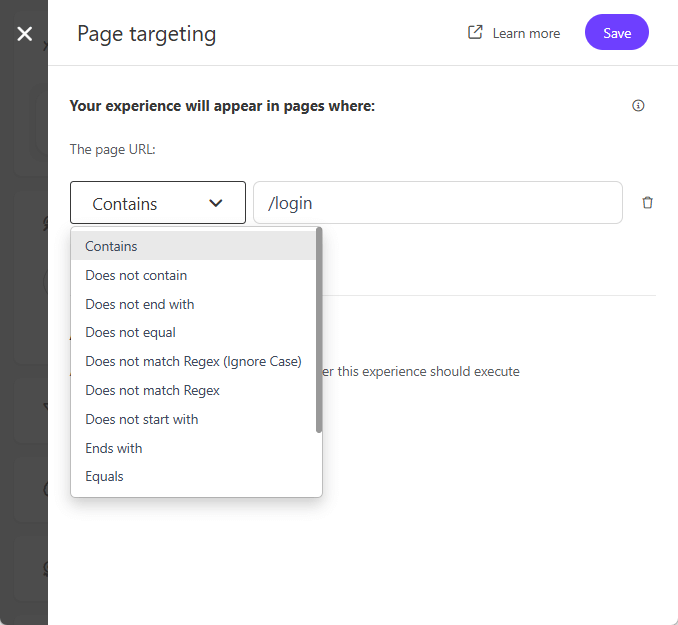
I chose all the pages for simplicity.
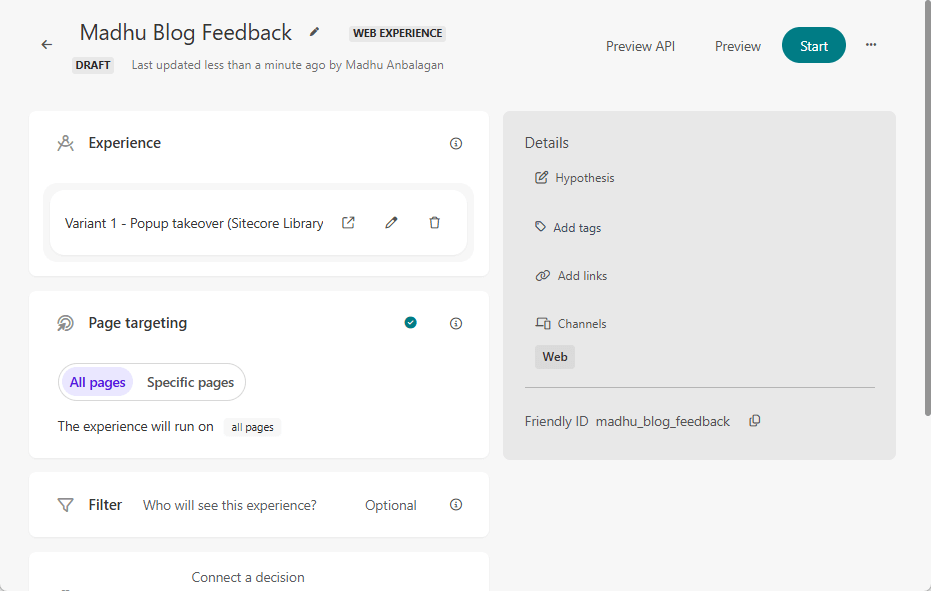
If you like specific pages – add the condition for the page URL.
 

Sitecore-CDP-and-Personalize-Web-Experiment-A-B-Testing-11.png

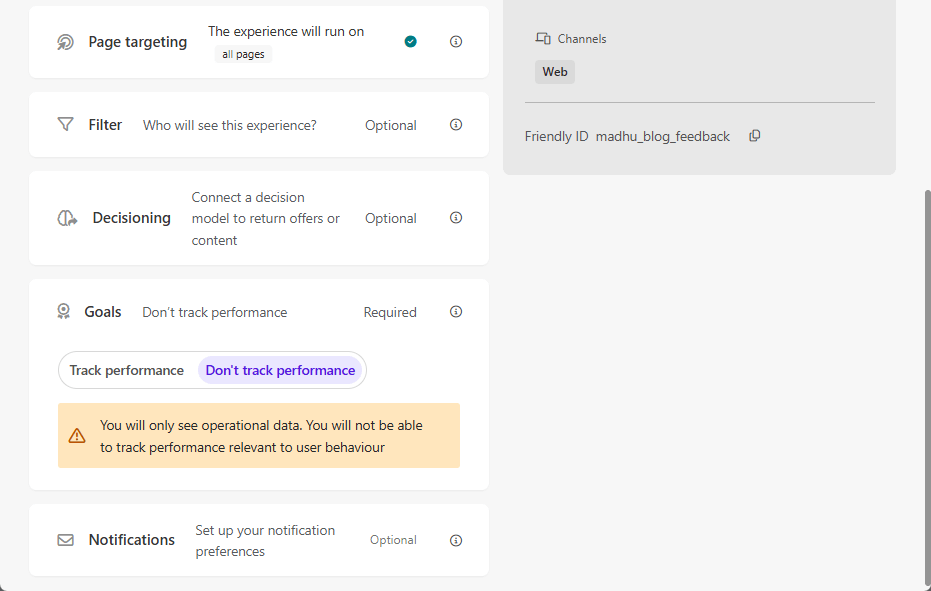
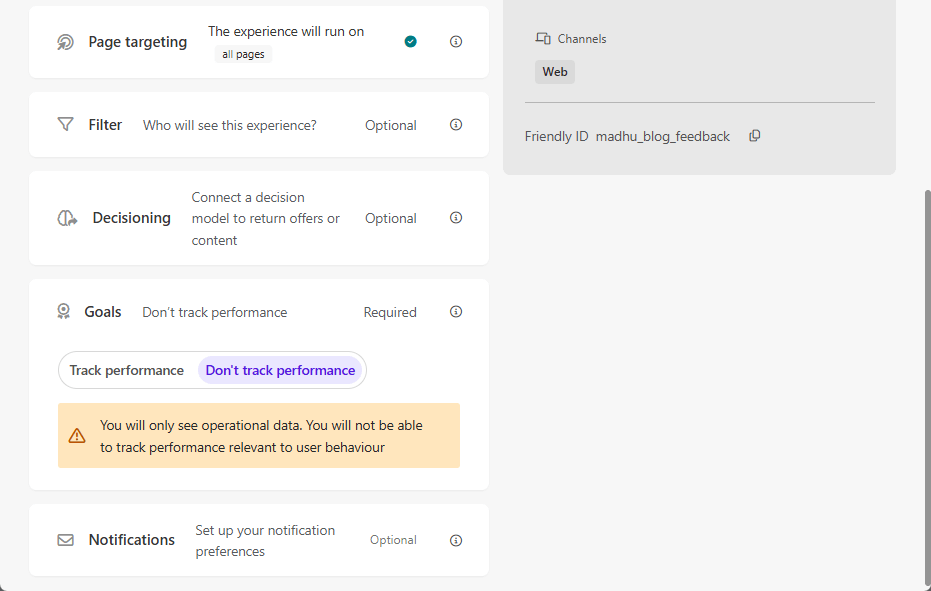
Goals

I chose not to track performance for testing purposes. Feel free to add any goal according to website needs.
Sitecore-CDP-Personalize-Popup-TamperMonkey-8-1.png

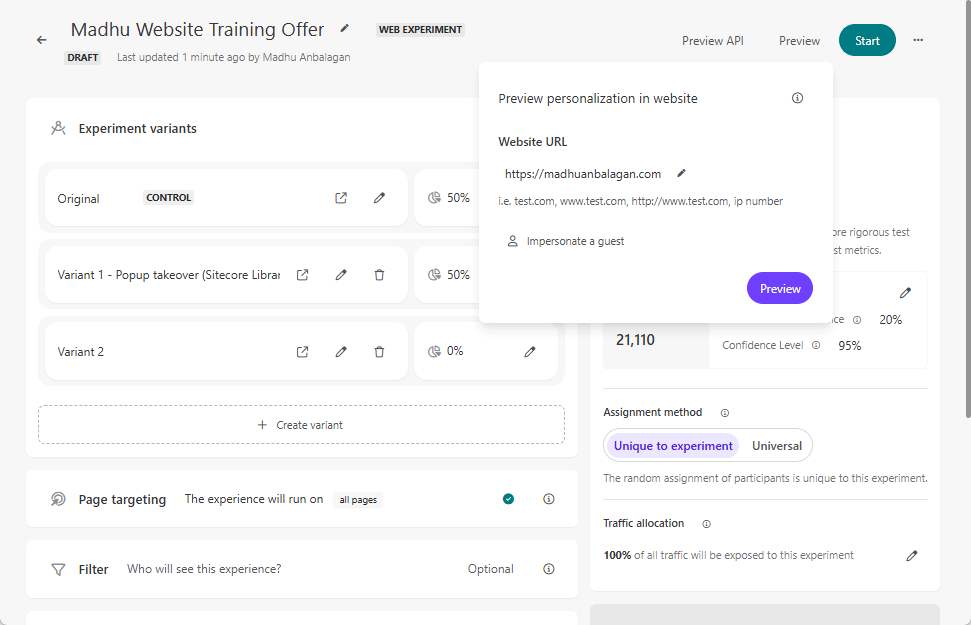
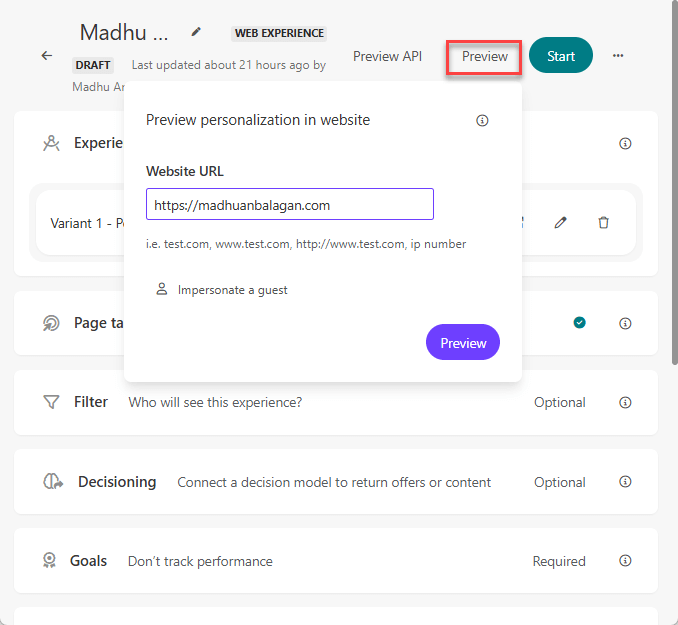
Preview

Let’s load the Preview with the page URL.
Sitecore-CDP-and-Personalize-Web-Experiment-A-B-Testing-8.png

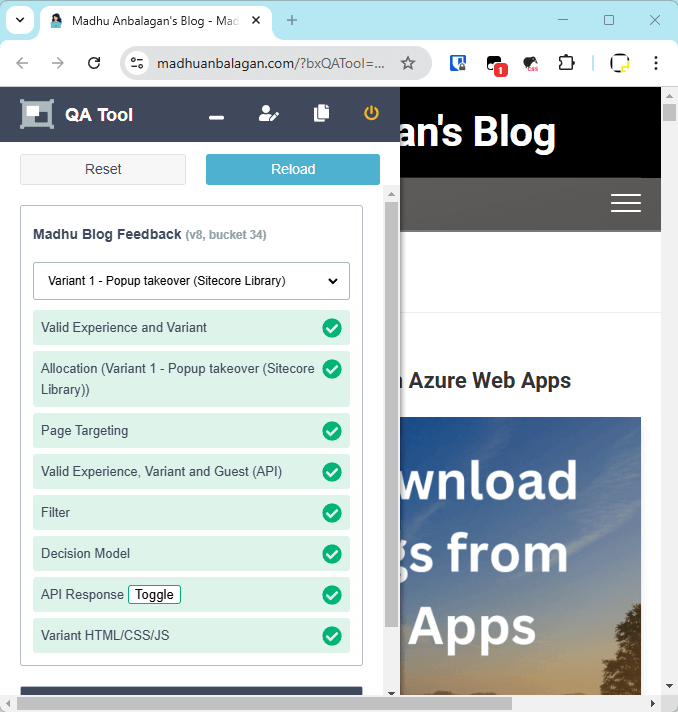
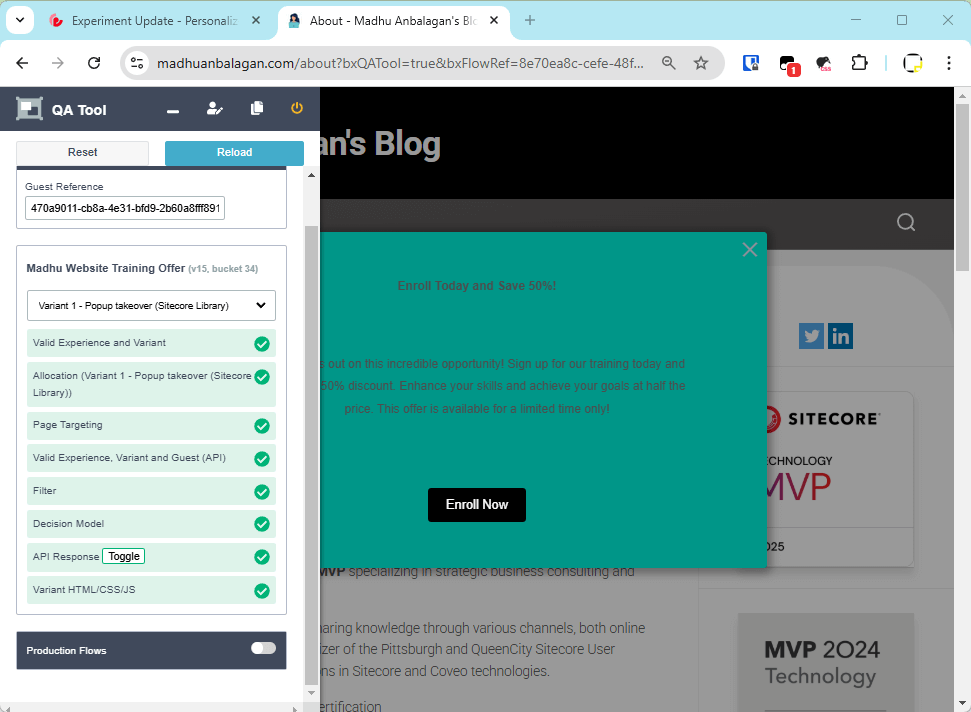
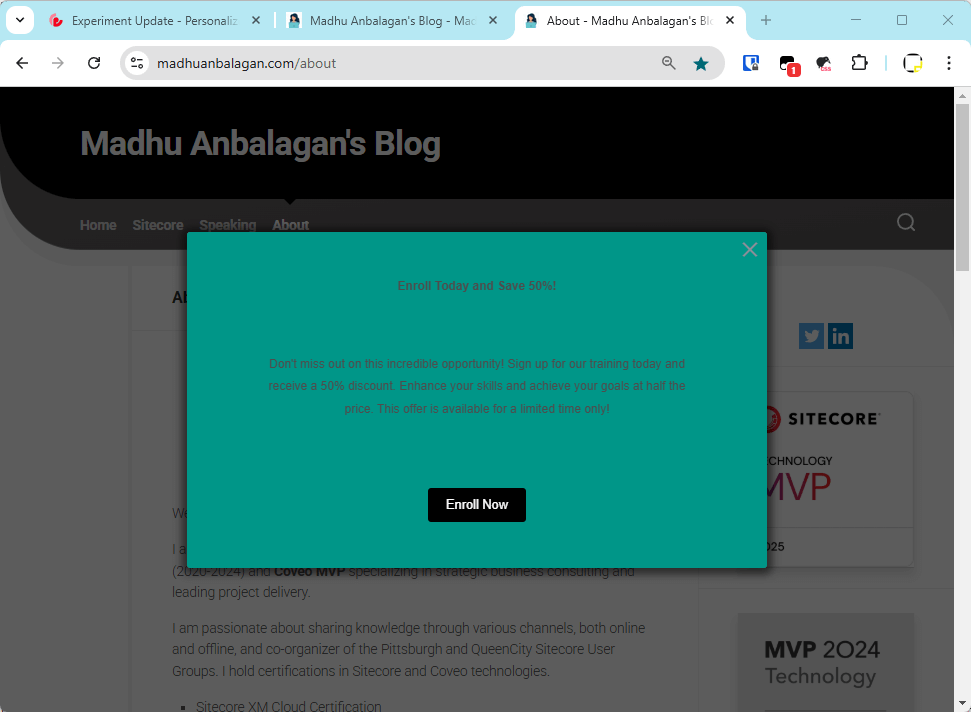
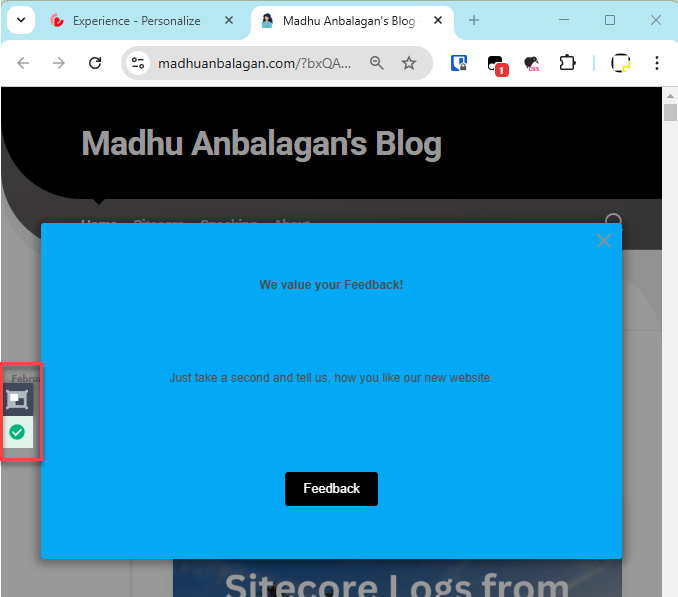
The Popup Variant 1 showed up and the QA Tool shows at the left side of the page.
Sitecore-CDP-and-Personalize-Web-Experiment-A-B-Testing-10.png

Live

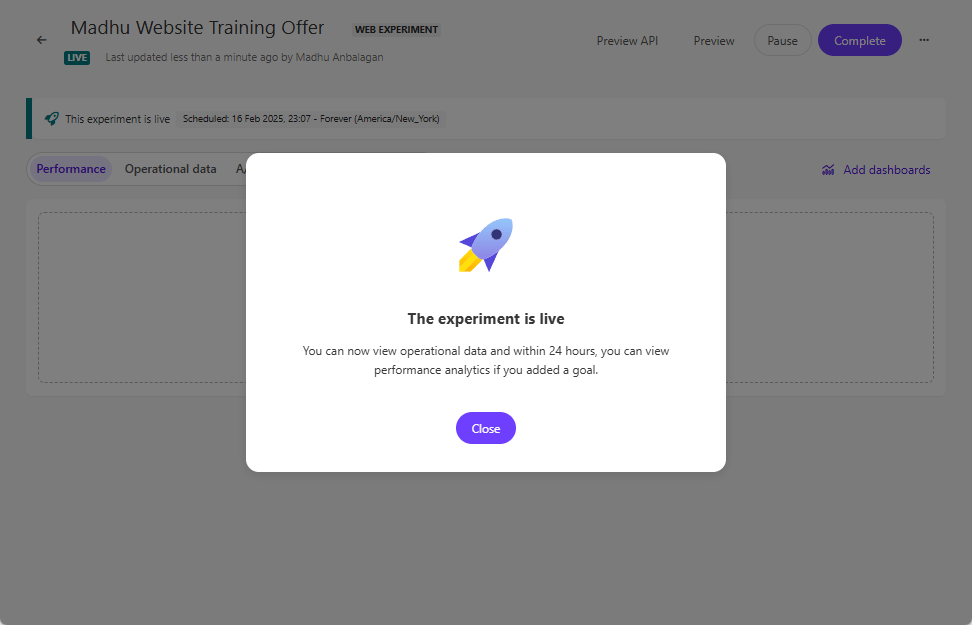
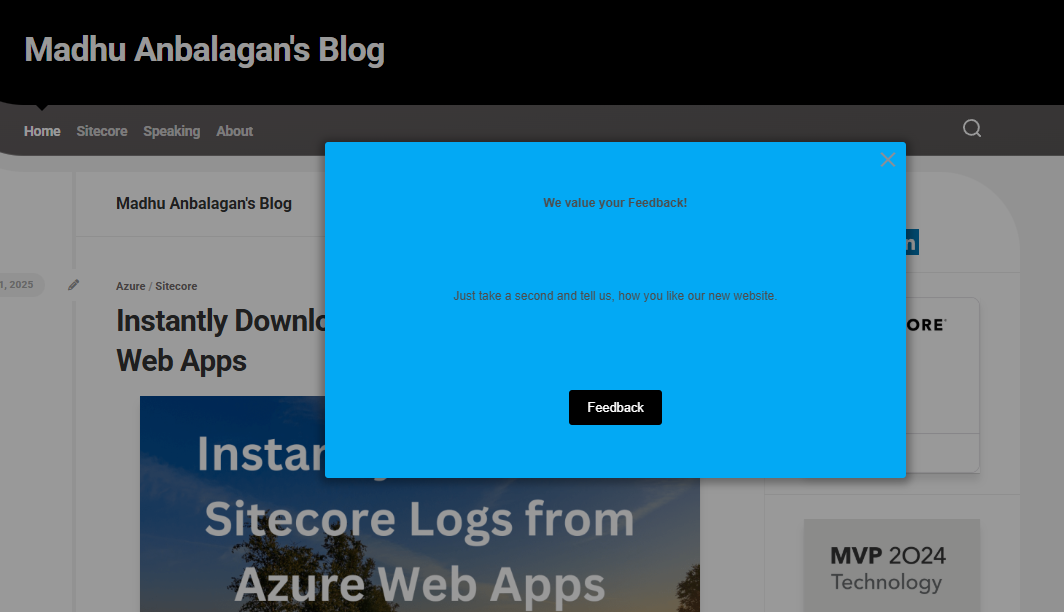
Let’s initiate the Experiment to go live—it only takes a few seconds. If notifications are set, an email will be sent.

Sitecore-CDP-and-Personalize-Web-Experiment-A-B-Testing-10.png

Let’s reload the page, Yay! Popup Variant 1 showed up!!

Let’s reload the page, Yay! Popup showed up!!
Hope this helps.

Happy Sitecoring!
0