Tagged: Logs

Sitecore – Favorite Free Add-On Modules

Over the years, I’ve worked with numerous Sitecore modules that simplify our tasks and boost efficiency.

Sharing my favorite free modules – 

  1. Sitecore Powershell Extensions
  2. SiteCron
  3. Azure Tools
  4. Sidekick
  5. Content Export Tool
  6. Sitecore Log Analyzer

Sitecore PowerShell Extensions

Sitecore PowerShell Extensions (SPE) (Huge thanks to Michael West, Adam Najmanowicz, and contributors) is a robust module that adds the power of PowerShell scripting to the Sitecore platform.

It empowers Sitecore developers and administrators to automate repetitive tasks and extend Sitecore’s functionality with custom scripts.

https://github.com/SitecorePowerShell/Console
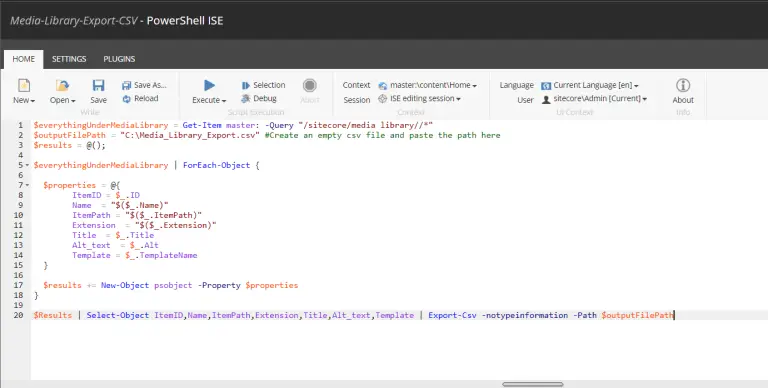
Check out my PowerShell script blogs – 

https://madhuanbalagan.com/efficiently-bulk-edit-sitecore-content-using-sitecore-powershell-extensions-spe

https://madhuanbalagan.com/bulk-update-fields-using-spe

https://madhuanbalagan.com/migrate-sitecore-media-library-assets-to-dam

SiteCron

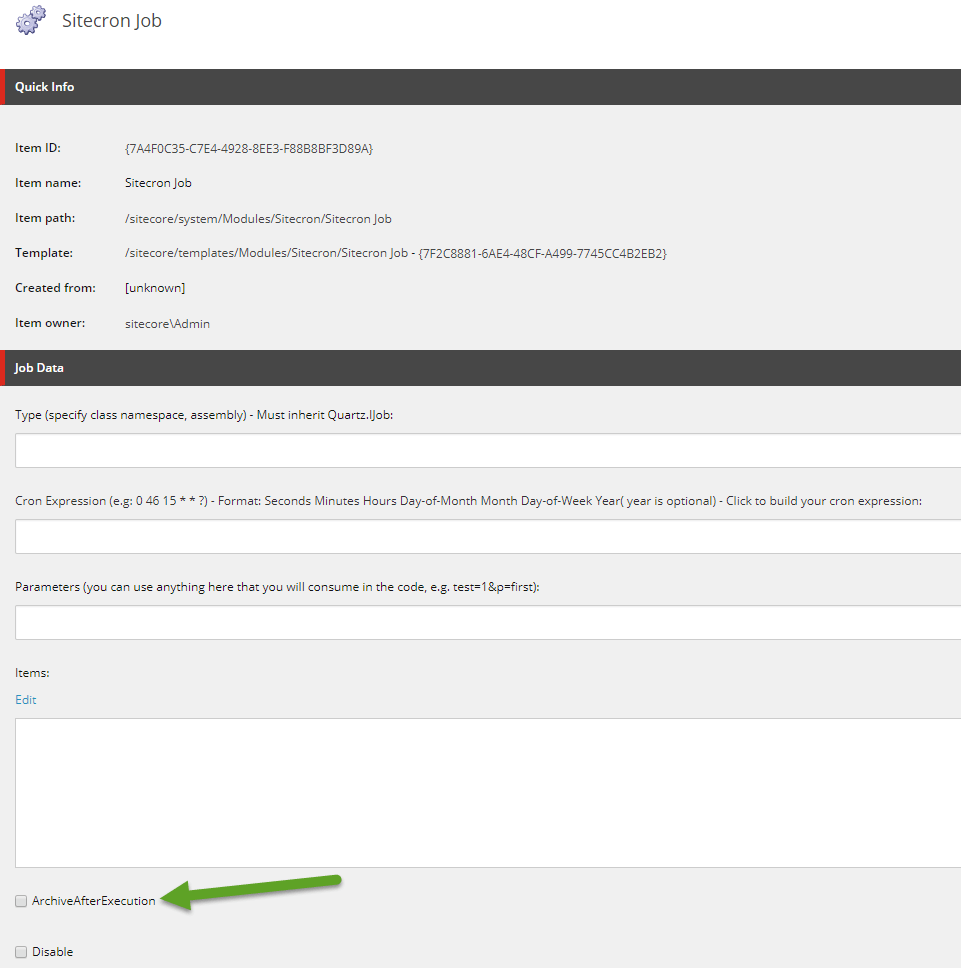
The SiteCron Module (a huge thanks to Akshay Sura) is a valuable tool for managing and scheduling tasks within Sitecore.

It provides a flexible way to automate and run various Sitecore jobs, such as publishing, indexing, or custom tasks, on a scheduled basis. 
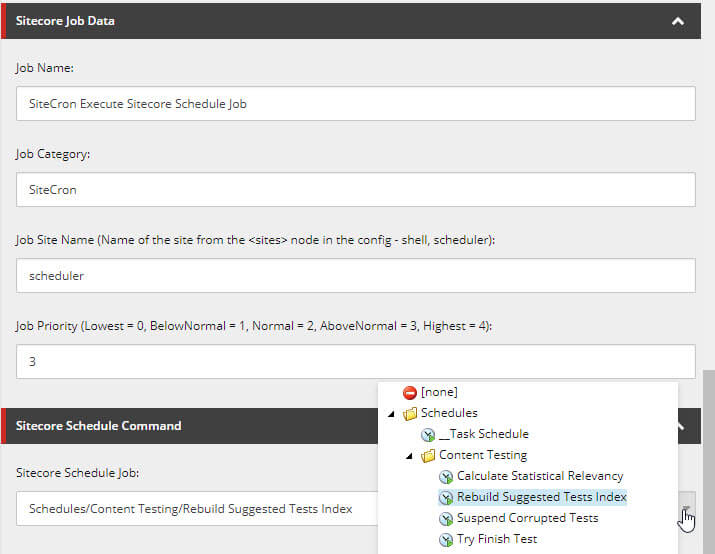
Check out the installation and recent blogs – 

https://akshaysura.com/2017/09/07/sitecore-scheduling-with-sitecron-2-1-6/

https://akshaysura.com/2018/04/19/sitecore-precision-scheduling-with-sitecron-3-0-4-released-in-powerful-ways/

Azure Tools

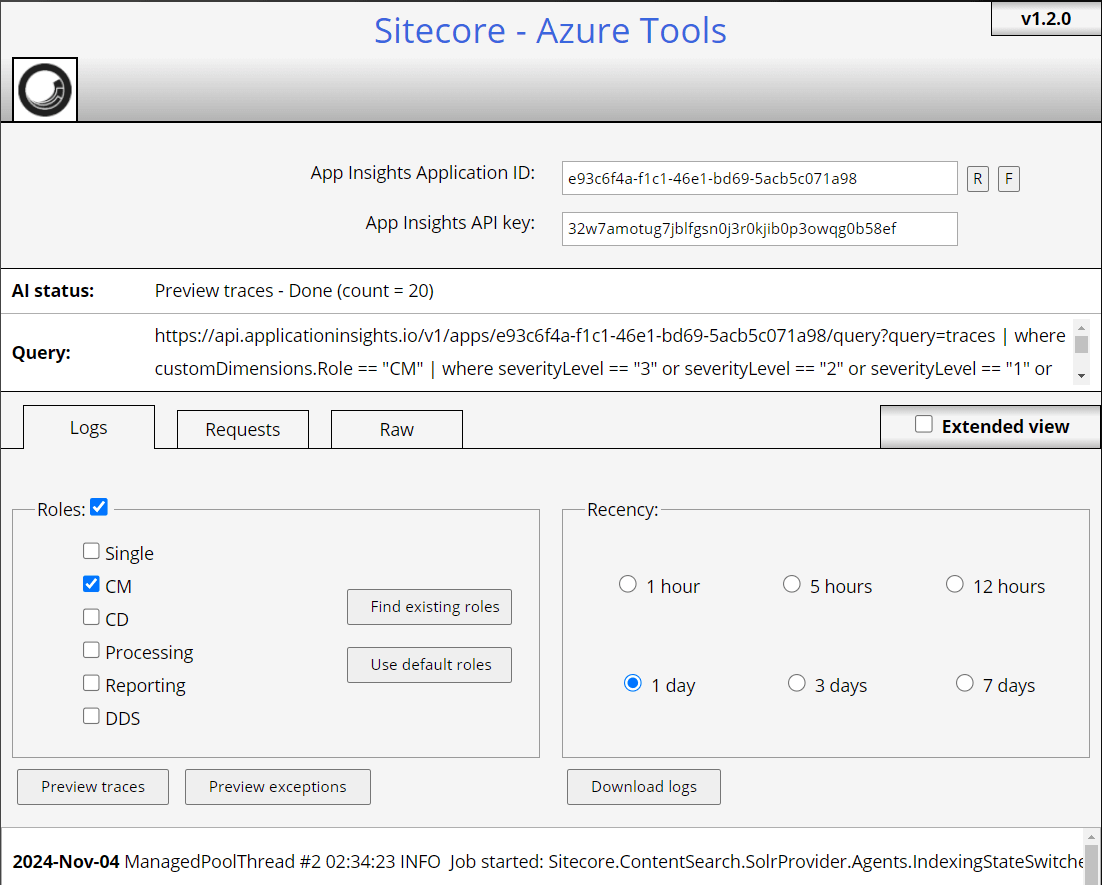
Downloading Sitecore Logs from Azure Web Apps wasn’t easy. To troubleshoot any issues, I used to spend decent time trying to find recent logs. 

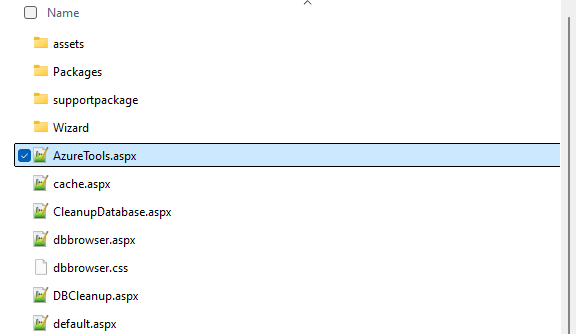
AzureTools (Thank you Sitecore Community – You are simply awesome!) comes to the rescue. It’s a simple .aspx page that can be dropped into CM environments and download logs in just seconds. 
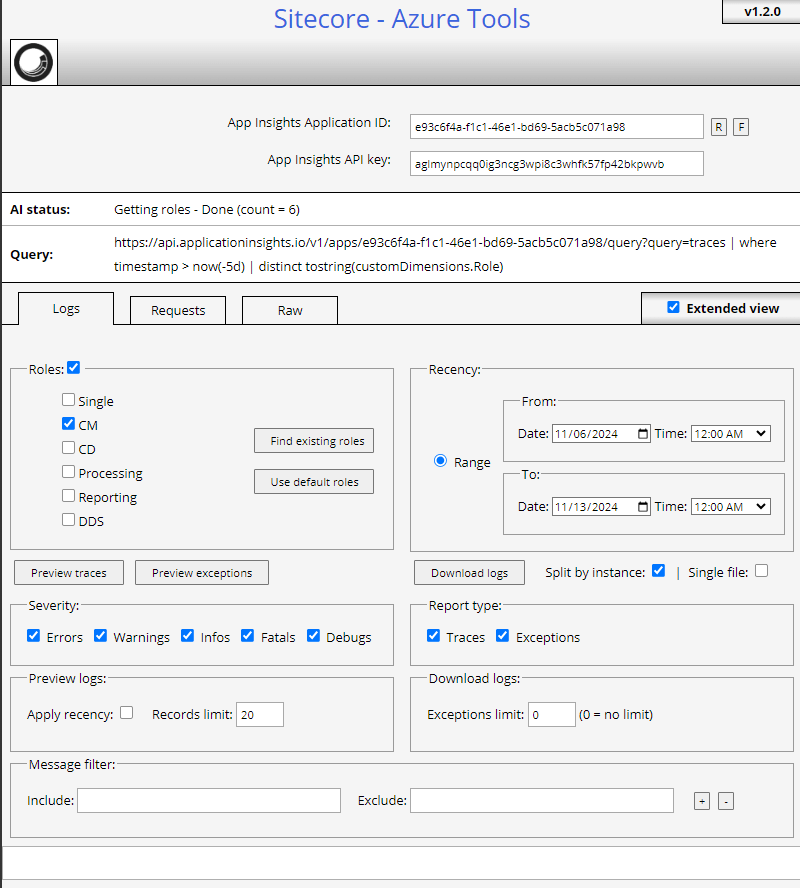
Check out my detailed blog –  https://madhuanbalagan.com/instantly-download-sitecore-logs-from-azure-web-apps

Sidekick

To pull content locally, we relied on packaging content from upper environments or restoring the database – which was quite time-consuming.

The Sitecore Sidekick module (a big thanks to Jeff Darchuk) was a lifesaver for quickly pulling content into local or lower environments.
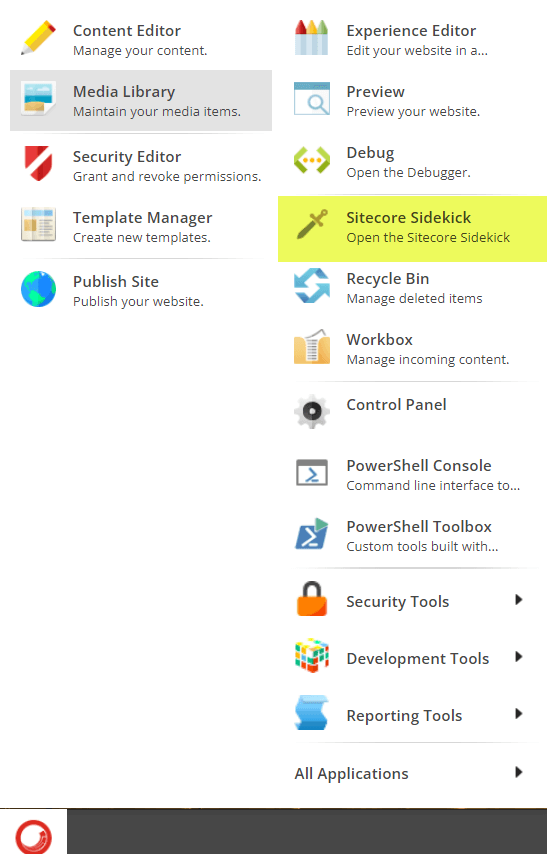
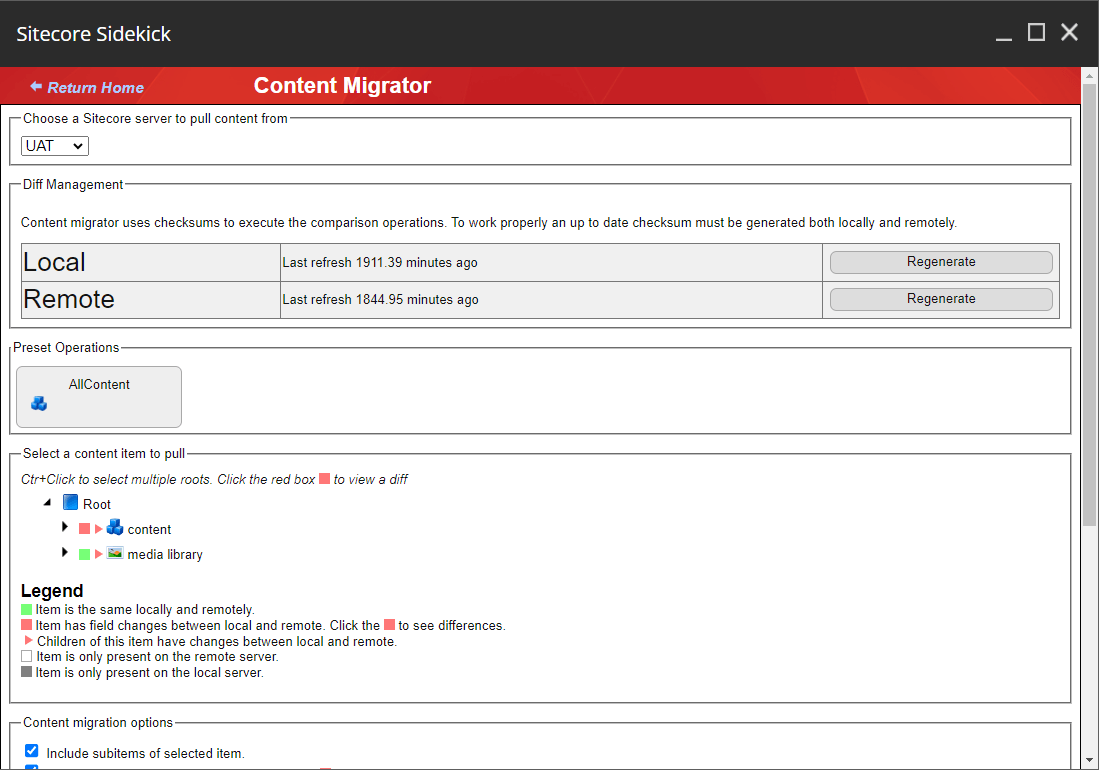
Sitecore-sidekick-install-download-content-migration-4.png

Sitecore-sidekick-install-download-content-migration-6.png

Take a look at my in-depth blog on installation and setup –  https://madhuanbalagan.com/sitecore-sidekick-installation-and-setup

Content Export Tool

The Sitecore Content Export Tool (many thanks to Erica Stockwell-Alpert) is a powerful utility designed to streamline the process of exporting content from your Sitecore instance.

It enables developers, content authors, and administrators to easily extract content in bulk, simplifying tasks like data migration, content backups, or sharing content across environments.

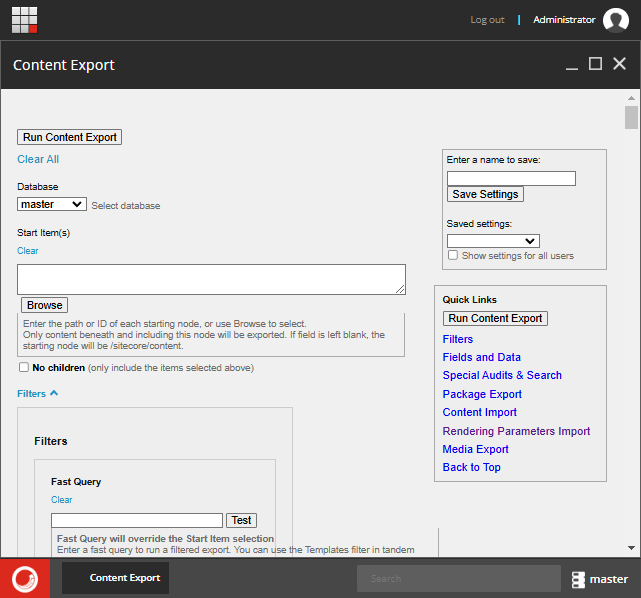
Explore the usage guide and documentation –https://ericastockwellalpert.wordpress.com/2017/08/24/content-export-tool-for-sitecore/


Sitecore Log Analyzer

The Sitecore Log Analyzer (SCLA) (Sitecore Community Rocks!) is a powerful tool designed to help Sitecore developers analyze and interpret log files with ease.

It simplifies the process of identifying issues, tracking errors, and monitoring system performance by providing a user-friendly interface to view and filter Sitecore logs.

This ClickOnce installer sets up the application and enables automatic updates. After installation, the app can be launched from the Start menu or pinned to the taskbar for easy access.

https://support.sitecore.com/kb?id=kb_article_view&sysparm_article=KB0870095

Hope this helps.

Happy Sitecoring!

0

Instantly Download Sitecore Logs from Azure Web Apps

I had to troubleshoot an issue and started with logs. Since we are in Azure PaaS, I used Kudu or App Service Explorer to search for recent logs. It was absolutely time-consuming.

AzureTools comes to the rescue. It is a simple .aspx page that can be dropped into CM environments, and download logs in seconds.

https://support.sitecore.com/kb?id=kb_article_view&sysparm_article=KB0420753

Download the recent AzureTools-1.2.0 (It should work with any Sitecore version) – 

Download AzureTools

Unzip and drop the AzureTools.aspx in https://[CM_Site]/sitecore/admin folder

Sitecore-AzureTools-Azure-Logs-ToolKit-3.png


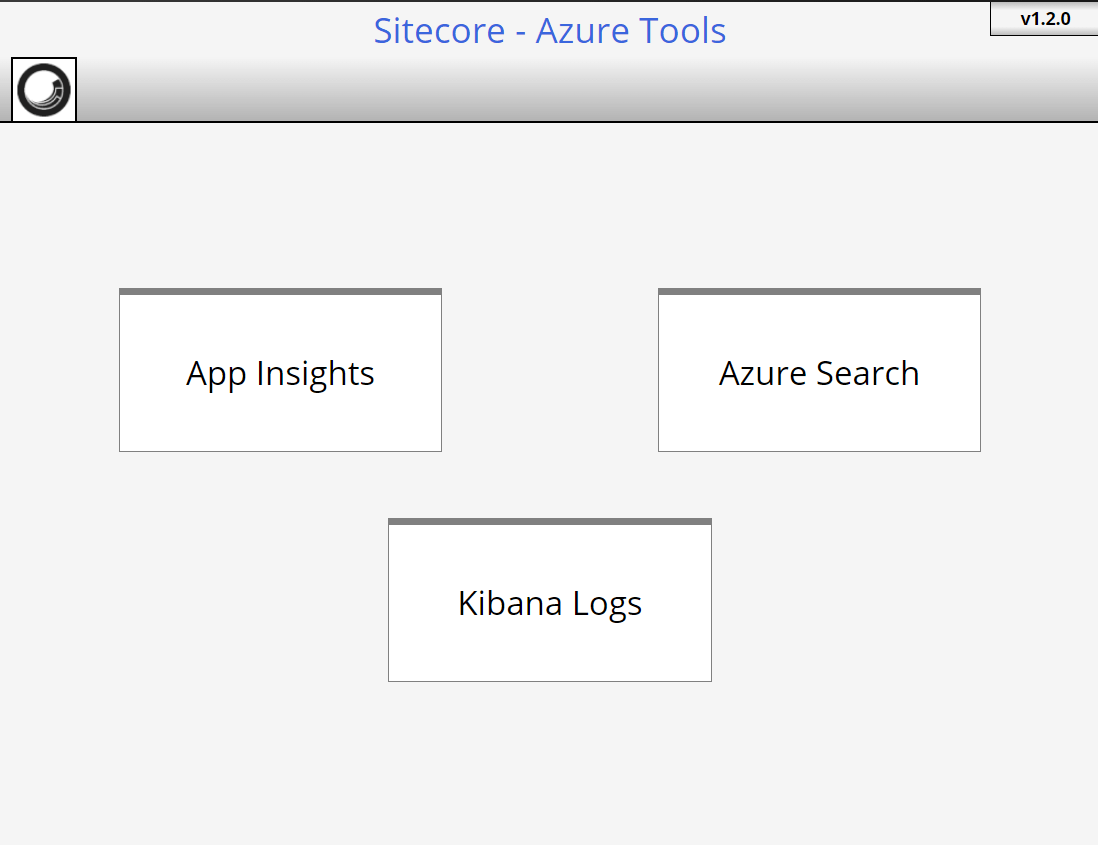
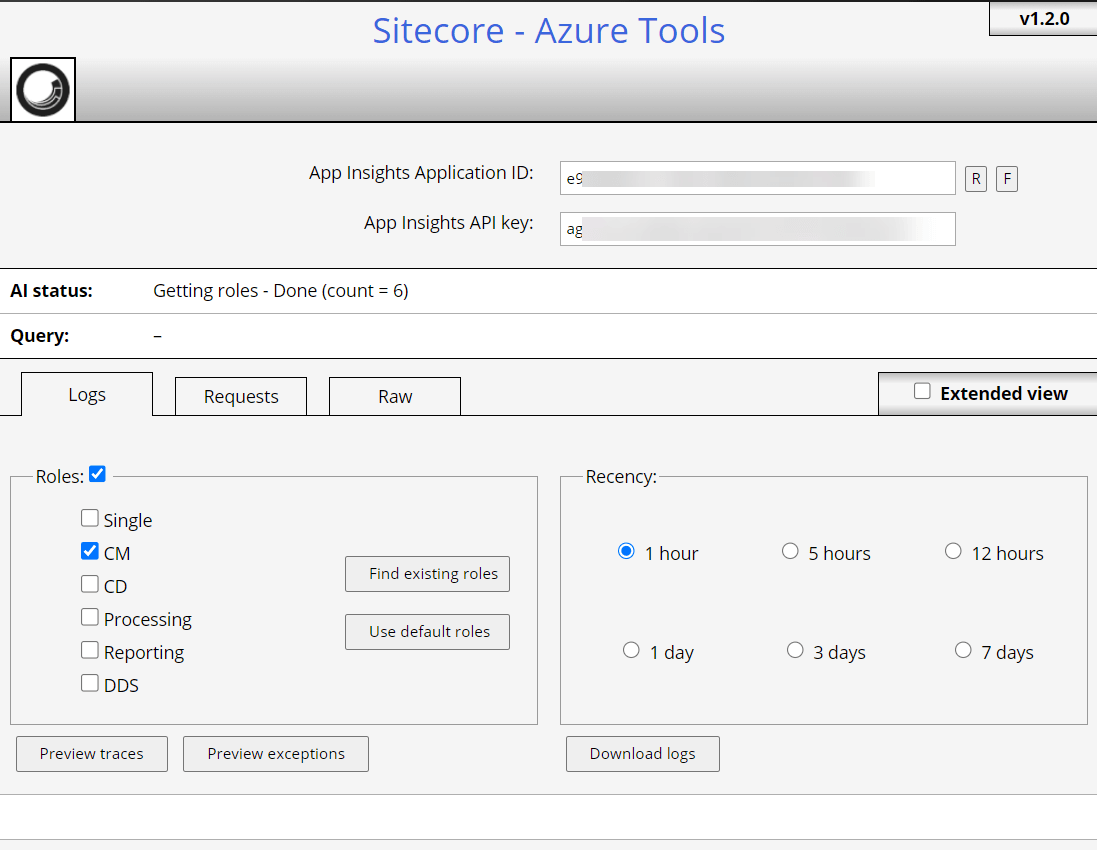
Now it’s ready to download logs from App Insights, Azure Search, and Kibana Logs – https://[CM_Site]/sitecore/admin/azuretools.aspx

Sitecore-AzureTools-Azure-Logs-ToolKit-4.png

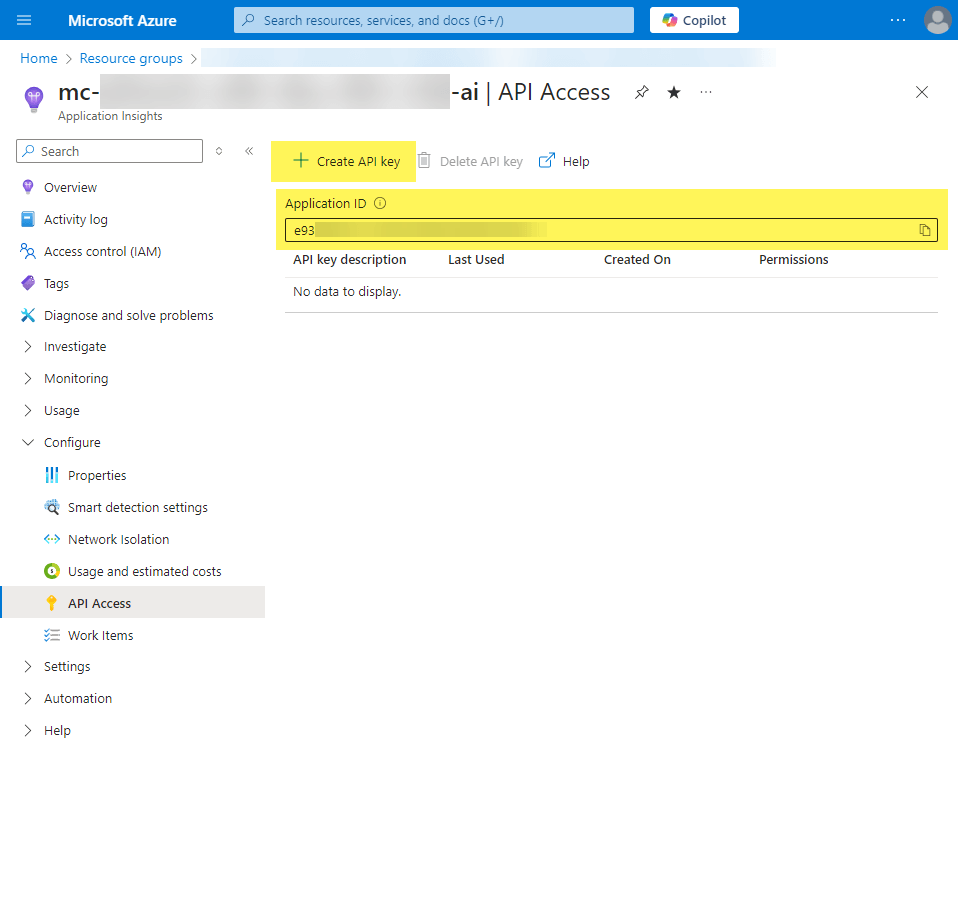
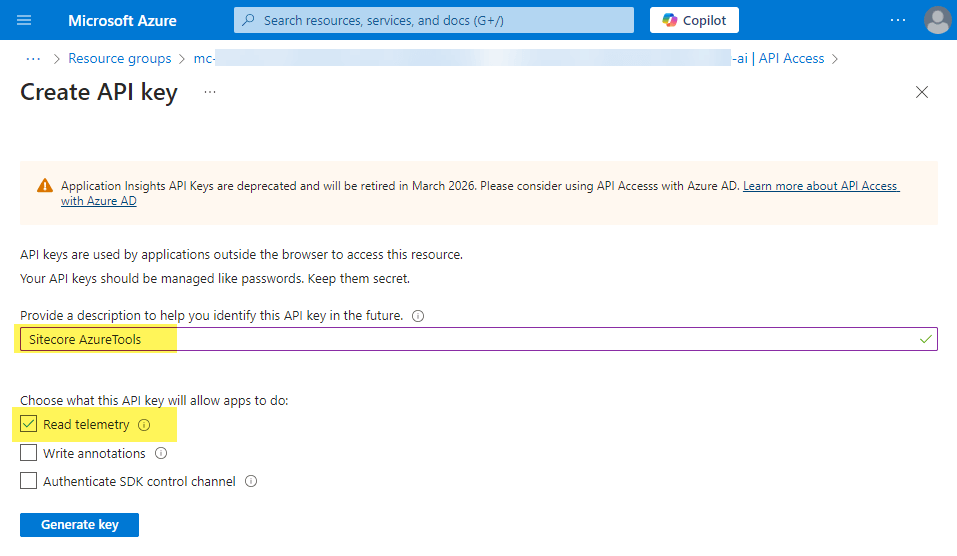
To pull logs from App Insights, need the Application ID and API Key.

Application ID:

Navigate to the Azure App Insights Resource -> Configure -> API Access.

Sitecore-AzureTools-Azure-Logs-ToolKit-5.pngAPI Key:

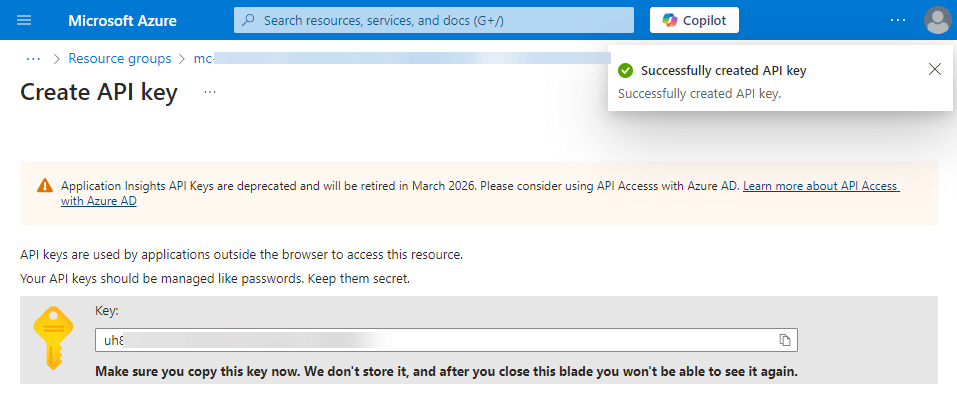
 – Create the API Key with Read Telemetry access.

Remember to save the key in notes, you can’t get it after creation!

Now I was excited to download logs – 

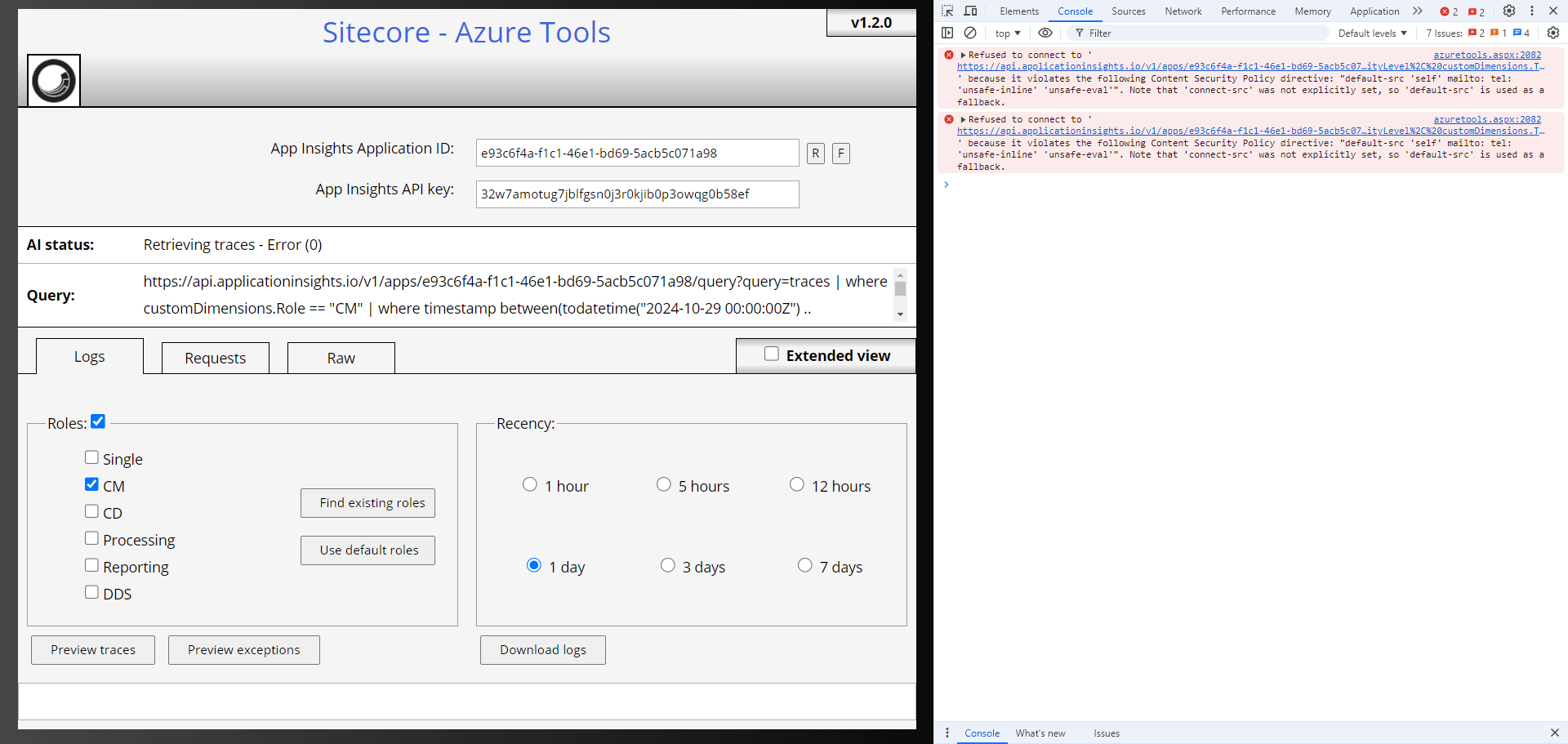
But then it’s erroring out – 

Sitecore-AzureTools-Azure-Logs-ToolKit-1.png  

The console is showing the following error –

azuretools.aspx:2082 Refused to connect to ‘https://api.applicationinsights.io/v1/apps/e…ityLevel%2C%20customDimensions.ThreadName%2C%20customDimensions.StackTrace’ because it violates the following Content Security Policy directive: “default-src ‘self’ mailto: tel: ‘unsafe-inline’ ‘unsafe-eval'”. Note that ‘connect-src’ was not explicitly set, so ‘default-src’ is used as a fallback.


It made me curious to check the Web.Config – I couldn’t find the content-src node, added the following line.

connect-src ‘self’ ‘unsafe-inline’ ‘unsafe-eval’ https://api.applicationinsights.io; 

 <location path="sitecore">
<system.webServer>
<httpProtocol>
<customHeaders>
<!--Adding mailto: and tel: which are currently blocked in iframes. Seems like a Chrome bug that never got fixed: https://bugs.chromium.org/p/chromium/issues/detail?id=663325 -->
<add name="Content-Security-Policy"
xdt:Locator="Match(name)"
xdt:Transform="SetAttributes"
value="default-src 'self' mailto: tel: 'unsafe-inline' 'unsafe-eval'; img-src 'self' data:; style-src 'self' 'unsafe-inline' https://fonts.googleapis.com; font-src 'self' 'unsafe-inline' https://fonts.gstatic.com; upgrade-insecure-requests; block-all-mixed-content;"/>
value="default-src 'self' mailto: tel: 'unsafe-inline' 'unsafe-eval'; img-src 'self' data:; style-src 'self' 'unsafe-inline' https://fonts.googleapis.com; font-src 'self' 'unsafe-inline' https://fonts.gstatic.com; connect-src 'self' 'unsafe-inline' 'unsafe-eval' https://api.applicationinsights.io; upgrade-insecure-requests; block-all-mixed-content;"/>
</customHeaders>
</httpProtocol>
</system.webServer>
</location>

Now I’m able to pull logs, preview traces, and exceptions.

 Sitecore-AzureTools-Azure-Logs-ToolKit-2.png


Utilize the Extended View for more filtered options.

Hope it helps.

Happy Sitecoring!

0

Coveo for Sitecore: Troubleshooting and Diagnostics

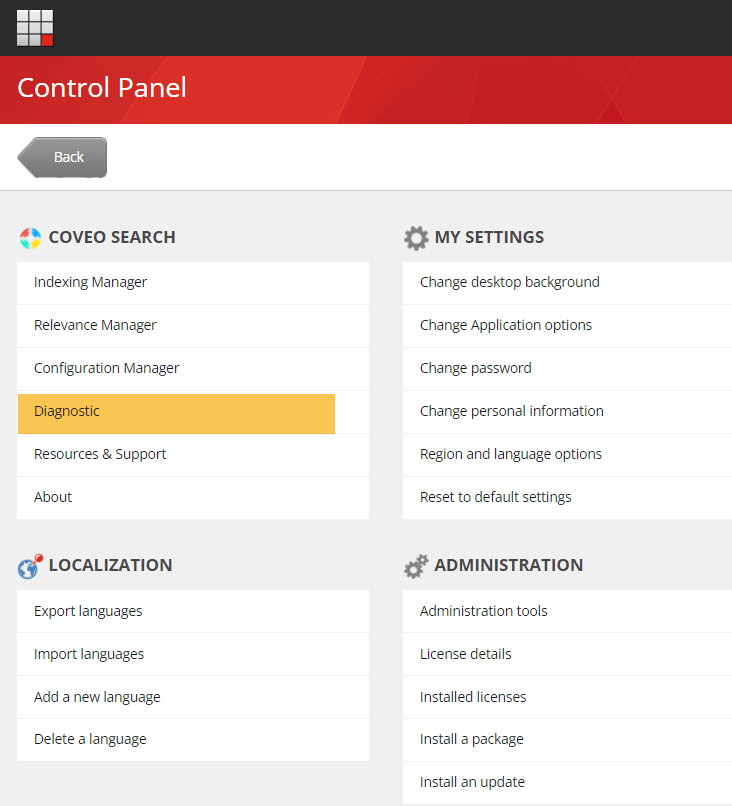
Coveo’s Diagnostics page is super helpful when troubleshooting any Coveo issues. It is listed in the Coveo Search menu in the Sitecore control panel or can be reached directly with the following url –

https://[CMS Site]/sitecore modules/web/coveo/admin/coveodiagnosticpage.aspx


Coveo for Sitecore components state

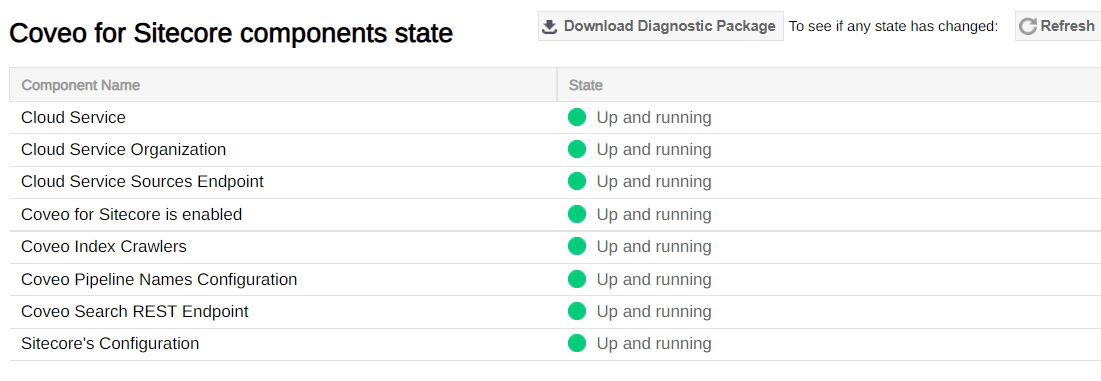
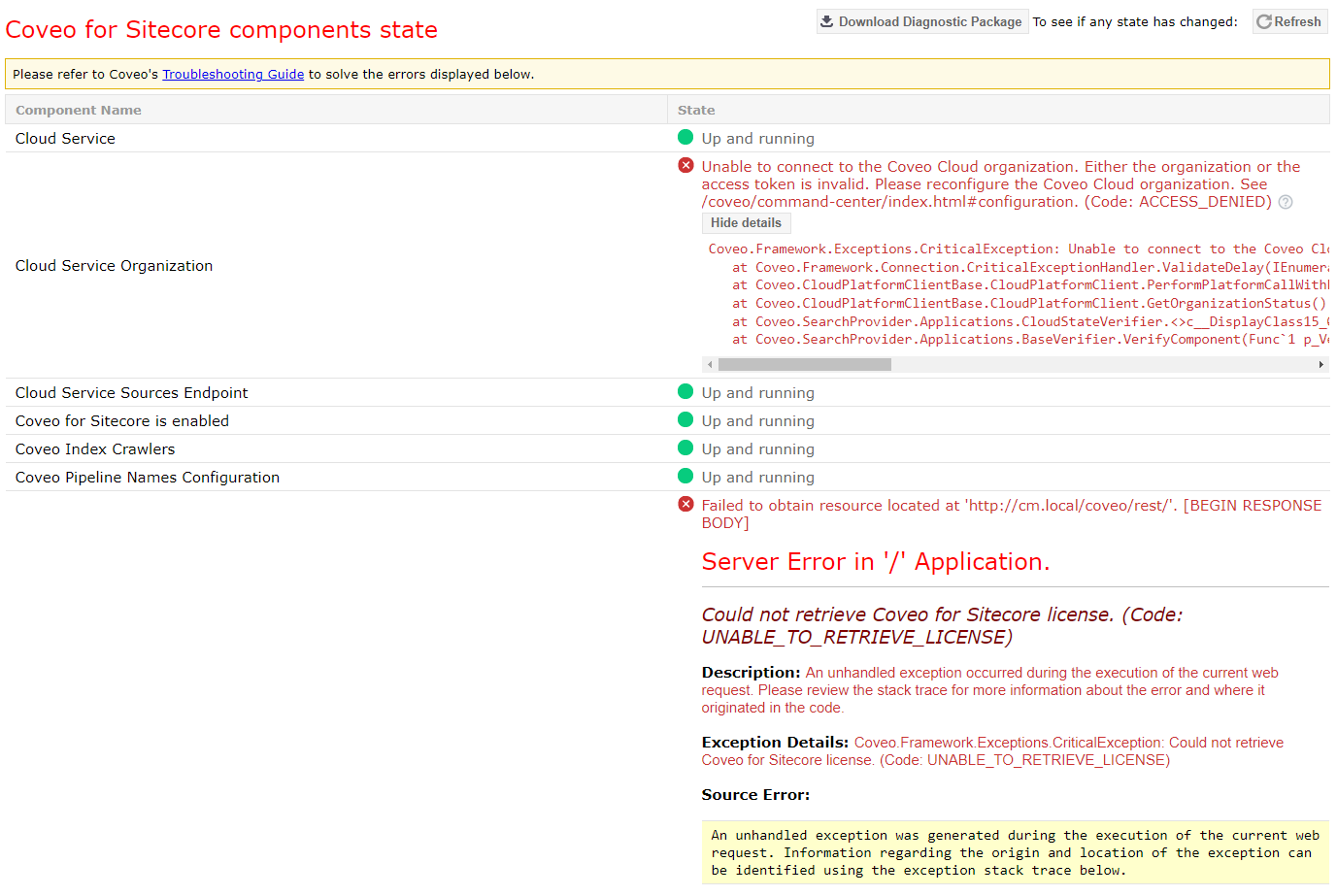
This section shows the status of all services related to Coveo. Here is the healthy state, but when it errors it shows the detailed error message

Healthy Component State


Errors in Component State

Coveo-Sitecore-Control-Panel-Diagnostic


Coveo for Sitecore version information

It comes in handy for checking Coveo and Sitecore versions and their compatibility.

Current Coveo for Sitecore version: 5.0.1153.1

Current Sitecore version: 10.2.0.6766

Compatibility status: these versions are compatible


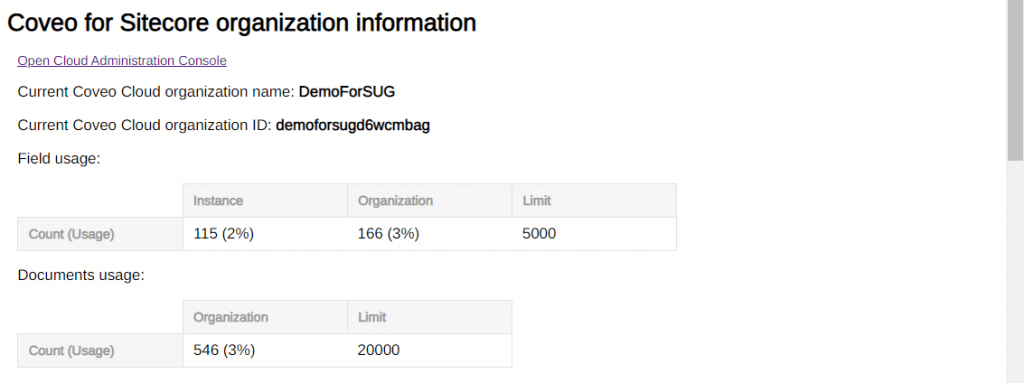
Coveo for Sitecore organization information

This section is about the Organization and it is usage details.


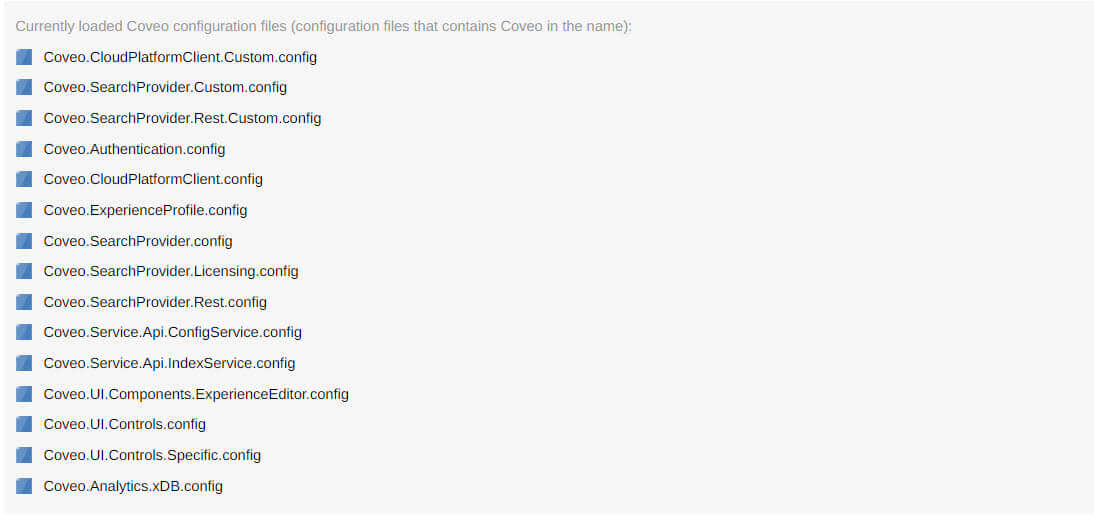
Coveo for Sitecore configuration files

Basically shows all Coveo-related config files that are currently loaded in the system.


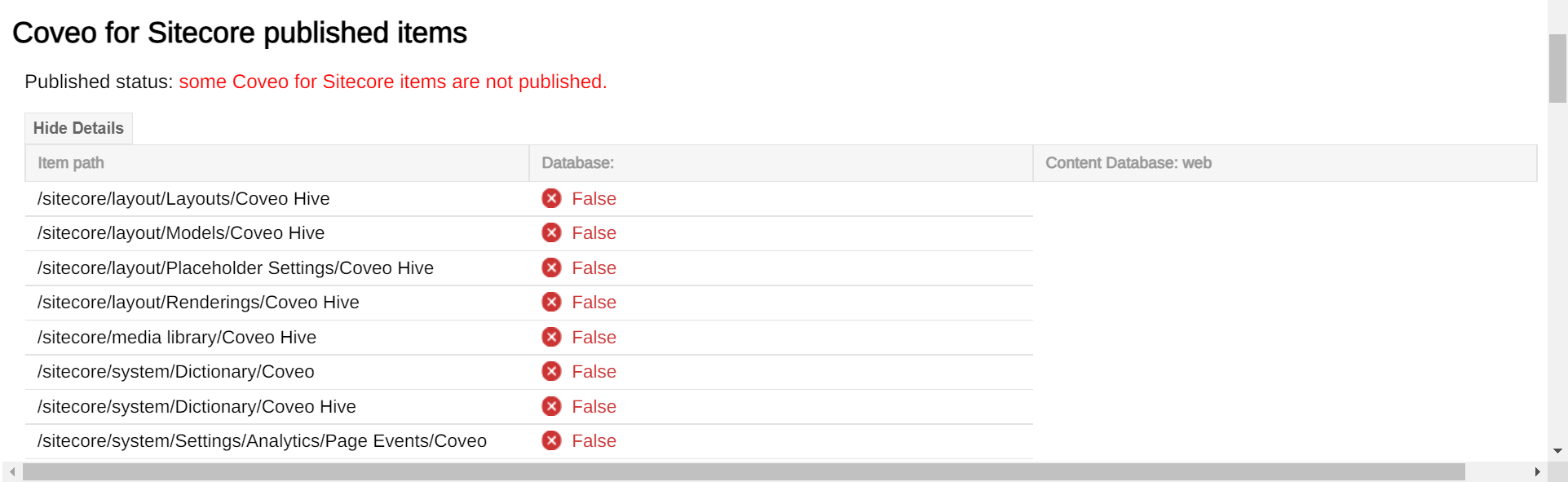
Coveo for Sitecore published items

It shows if the Coveo-related Sitecore items are published or not, it’s time to publish them 🙂


Coveo for Sitecore Indexing test

This section comes into handy when indexing an item or a path, really helpful when an Item has been published but it’s not available in the Coveo index. 


Coveo for Sitecore log viewer

This section is my favorite – I typically use it on Production environments to view the logs when we don’t have access to the server or without logging into the Production servers. We can quickly view the log and troubleshoot the issues.


Indexes List

It shows all the indexes and the IsCoveo flag differentiates the Coveo and Sitecore Indexes.


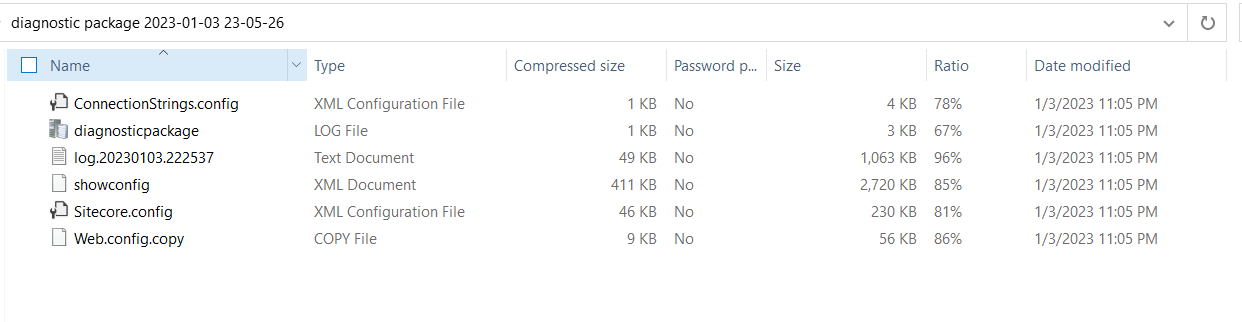
Download Diagnostics Package

Another super helpful tool – The download Diagnostics Package button at the top of the page. 

It creates all necessary config and logs files needed to log a Coveo Support ticket.

I hope this helps someone.

Happy Sitecoring!

1